
<?xml version="1.0" encoding="utf-8"?><feed xmlns="http://www.w3.org/2005/Atom" xml:lang="en"><generator uri="https://jekyllrb.com/" version="3.10.0">Jekyll</generator><link href="https://parkcheolhee-lab.github.io/feed.xml" rel="self" type="application/atom+xml" /><link href="https://parkcheolhee-lab.github.io/" rel="alternate" type="text/html" hreflang="en" /><updated>2026-06-16T02:15:41+00:00</updated><id>https://parkcheolhee-lab.github.io/feed.xml</id><title type="html">latentspace.</title><subtitle>&lt;b class=&quot;site-description&quot;&gt;parkcheolhee-lab&lt;/b&gt;</subtitle><author><name>pch</name></author><entry><title type="html">ㅋ</title><link href="https://parkcheolhee-lab.github.io/z/" rel="alternate" type="text/html" title="ㅋ" /><published>2026-05-21T00:00:00+00:00</published><updated>2026-05-21T00:00:00+00:00</updated><id>https://parkcheolhee-lab.github.io/z</id><content type="html" xml:base="https://parkcheolhee-lab.github.io/z/"><![CDATA[<br>

<style>
.dual-image {
    display: flex;
    flex-direction: column;
    gap: 0.5em;
}

.dual-image img {
    width: 100%;
    height: auto;
}

@media (min-width: 40em) {
    .dual-image {
        flex-direction: row;
    }

    .dual-image img {
        flex: 1;
        min-width: 0;
        width: auto;
    }
}
</style>

<figure class="dual-image">
    <img alt="ㅋ" src="/img/z/z-0.jpg" onerror=handle_image_error(this)>
    <img alt="ㅋ" src="/img/z/z-1.jpg" onerror=handle_image_error(this)>
</figure>
<figcaption class="nofig"><a href="https://www.linkedin.com/posts/bzcf-lead_%EC%B9%B4%ED%8C%8C%EC%8B%9C%EA%B0%80-anthropic%EC%97%90-%ED%95%A9%EB%A5%98%ED%96%88%EB%8B%A4-%EC%98%A4%EB%8A%98-%EA%B7%B8%EA%B0%80-x%EC%97%90-%EC%A7%81%EC%A0%91-%EC%98%AC%EB%A0%B8%EB%8B%A4-ugcPost-7463111291268898816-lDcc/?utm_source=share&utm_medium=member_desktop&rcm=ACoAADkRGoUBqRSk34EMsjbvfh6V5mM284ws8Ao">BZCF</a></figcaption>

<br><br>]]></content><author><name>pch</name></author><category term="note" /><summary type="html"><![CDATA[BZCF]]></summary></entry><entry><title type="html">Skeleton UX · UI</title><link href="https://parkcheolhee-lab.github.io/skeleton-ux-ui/" rel="alternate" type="text/html" title="Skeleton UX · UI" /><published>2026-05-13T00:00:00+00:00</published><updated>2026-05-13T00:00:00+00:00</updated><id>https://parkcheolhee-lab.github.io/skeleton-ux-ui</id><content type="html" xml:base="https://parkcheolhee-lab.github.io/skeleton-ux-ui/"><![CDATA[<br>

<ul>
    <li>
        What a skeleton screen is
    </li>
        <ul>
            <li>
                A <b>skeleton screen</b> is a wireframe-shaped placeholder rendered in light gray before real content arrives. The placeholders mirror the final layout — image blocks, text bars, card frames — so the page appears to <b>take shape</b> rather than simply wait
            </li>
            <li>
                The term was coined by Luke Wroblewski in 2013 while working on the Polar app. He noticed that spinners drew the user's attention to the act of waiting, and replaced them with screens that focus attention on the content being assembled
            </li>
            <li>
                Quoting Wroblewski directly: <i>"With a skeleton screen, the focus is on content being loaded, not the fact that it's loading, and that's real progress."</i>
            </li>
        </ul>
    <br>

    <li>
        Watch it side by side
    </li>
        <ul>
            <li>
                The two panes below load for the same 5 seconds and then reveal the same card. The only difference is what the user looks at during the wait
            </li>
            <li>
                The spinner pane keeps attention on the indicator; the skeleton pane keeps attention on the shape of the answer
            </li>
        </ul>

        <div class="skel-demo" id="skel-demo">
            <div class="skel-row">
                <div class="skel-pane">
                    <div class="skel-pane-label">Spinner</div>
                    <div class="skel-stage" id="skel-stage-spinner">
                        <div class="skel-spinner" aria-hidden="true"></div>
                    </div>
                </div>
                <div class="skel-pane">
                    <div class="skel-pane-label">Skeleton screen</div>
                    <div class="skel-stage" id="skel-stage-skeleton">
                        <div class="skel-ph skel-ph-img skel-shimmer"></div>
                        <div class="skel-ph skel-ph-line-1 skel-shimmer"></div>
                        <div class="skel-ph skel-ph-line-2 skel-shimmer"></div>
                        <div class="skel-ph skel-ph-line-3 skel-shimmer"></div>
                    </div>
                </div>
            </div>
            <div class="skel-controls">
                <button id="skel-replay" type="button">Replay (5s)</button>
                <span class="skel-hint">Both panes finish at the same instant. Which felt faster?</span>
            </div>
        </div>
    <br>

    <li>
        Why it changes perceived wait, not actual wait
    </li>
        <ul>
            <li>
                Skeleton screens do not shorten the load. Server time, network time, and render time are unchanged. What changes is the user's mental model of progress
            </li>
            <li>
                With a spinner, the user is watching a clock — there is no signal that anything in particular is being assembled, so attention loops back to the wait itself
            </li>
            <li>
                With a skeleton, the user is already parsing the future layout. By the time real content snaps into place, the eye has chosen where to land and the page feels <b>partially read</b> rather than <b>blocked</b>
            </li>
            <li>
                The principle generalizes beyond loading. Any waiting experience improves when the user can do useful preparatory work while the system finishes
            </li>
        </ul>
    <br>

    <li>
        What the research actually says
    </li>
        <ul>
            <li>
                Nearly every blog post on this topic claims skeleton screens make pages feel <i>20–30% faster</i>. That number is folklore — the underlying study does not say it
            </li>
            <li>
                The most-cited paper, <a href="https://dl.acm.org/doi/10.1145/3232078.3232086">Mejtoft, Långström & Söderström (2018)</a>, compared a fictional news site loaded with skeleton screens against the same site loaded with spinners
            </li>
            <li>
                Skeleton screens scored <b>higher on average</b> for perceived speed and ease of navigation. Spinners, oddly, led to <b>faster task completion</b> on first visit. The differences in both directions were <b>not statistically significant</b>
            </li>
            <li>
                The honest takeaway is narrower than the folklore: skeleton screens shift attention in a way users tend to prefer, but the effect on measurable speed is small and the published evidence is weak
            </li>
            <li>
                The strongest case for skeletons is qualitative — fewer abandonment moments, less perceived jank, smoother handoff into rendered content
            </li>
        </ul>
    <br>

    <li>
        When skeletons are the right choice
    </li>
        <ul>
            <li>
                <b>Full-page loads</b> where the layout is predictable: feeds, dashboards, search results, profile pages, product listings
            </li>
            <li>
                <b>Wait windows of about 2 to 10 seconds.</b> Under one second, render the real content directly. Over ten seconds, the user needs an explicit progress bar with a sense of duration, not a vibe
            </li>
            <li>
                <b>Container-shaped content</b> — cards, tiles, structured lists, grids. The skeleton works because the placeholder is a meaningful preview of the cell
            </li>
            <li>
                When the goal is to <b>reduce abandonment</b> on cold-start pages: the user sees structure within the first paint and is less likely to assume the page is broken
            </li>
        </ul>
    <br>

    <li>
        When skeletons are the wrong choice
    </li>
        <ul>
            <li>
                <b>Known-duration work.</b> If you can estimate the remaining time (file upload, video export, batch job), use a progress bar — it gives the user the one piece of information a skeleton cannot
            </li>
            <li>
                <b>Sub-second loads.</b> A skeleton that appears for 200 ms is just a flash of gray — worse than no indicator. If you must guard against fast paths, hide the skeleton until at least <code>~300ms</code> have elapsed
            </li>
            <li>
                <b>Single-component loads.</b> A skeleton over a single button or input is visual noise; a small inline spinner is clearer
            </li>
            <li>
                <b>Layouts that do not yet exist.</b> A skeleton screen lies if the placeholders do not match what eventually loads. Mismatched dimensions cause the user's eye to relock — the perceived-speed gain inverts into a perceived-jank loss
            </li>
            <li>
                <b>Frame-only skeletons</b> that render the header and footer but leave the middle blank. Users read these as "the page broke" once the wait passes a couple of seconds
            </li>
        </ul>
    <br>

    <li>
        Designing one that actually helps
    </li>
        <ul>
            <li>
                <b>Match the final layout to the pixel.</b> Block widths, line heights, gap sizes, border radii — all the same as the rendered content. A skeleton's only job is to be a truthful preview
            </li>
            <li>
                <b>Animate, but quietly.</b> A slow shimmer or pulse — period around 1.2 to 1.6 seconds — keeps the eye assured that the page is alive. Fast or high-contrast animation re-creates the spinner problem
            </li>
            <li>
                <b>Avoid skeletons on micro-elements.</b> One placeholder per group of related elements is enough. Skeletons on individual labels, icons, or buttons add noise without adding signal
            </li>
            <li>
                <b>Respect reduced motion.</b> Behind <code>@media (prefers-reduced-motion: reduce)</code>, freeze the shimmer to a static gray. The pattern still works without animation
            </li>
            <li>
                <b>Announce loading to assistive tech.</b> Add <code>aria-busy="true"</code> to the loading region and remove it on completion. The visual analogue of "loading" should also reach screen-reader users
            </li>
            <li>
                <b>Hide the skeleton on fast paths.</b> Delay its first paint by a short threshold so that genuinely quick loads never flash a placeholder. The same goes for the transition into real content — if you can, fade rather than snap
            </li>
            <li>
                <b>Never use it to hide a failure.</b> A skeleton that lingers past the timeout becomes a lie. On error, swap to an explicit error state, not a permanent gray
            </li>
        </ul>
    <br>

    <li>
        Closing thought
    </li>
        <ul>
            <li>
                Skeletons are not a speed trick. They are an attention trick — they redirect the user from <i>"how long is this taking"</i> to <i>"what is this going to be"</i>
            </li>
            <li>
                That single shift is worth more than the dubious 20–30% figure suggests. The win is not that the page loads faster, but that the user stops counting
            </li>
        </ul>
</ul>

<br><br>
Sources:
<ul>
    <li><a href="https://www.lukew.com/ff/entry.asp?1797=">Mobile Design Details: Avoid The Spinner — Luke Wroblewski</a></li>
    <li><a href="https://www.nngroup.com/articles/skeleton-screens/">Skeleton Screens 101 — Nielsen Norman Group</a></li>
    <li><a href="https://dl.acm.org/doi/10.1145/3232078.3232086">Mejtoft, Långström & Söderström (2018), The effect of skeleton screens — ECCE'18</a></li>
    <li><a href="https://blog.logrocket.com/ux-design/skeleton-loading-screen-design/">Skeleton loading screen design — LogRocket</a></li>
</ul>

<style>
.skel-demo {
    margin: 1.2em 0 0.6em;
    padding: 1em;
    border: 1px solid rgba(0, 0, 0, 0.08);
    border-radius: 8px;
    background: #fafafa;
}
.skel-row {
    display: flex;
    gap: 1em;
    flex-wrap: wrap;
}
.skel-pane {
    flex: 1 1 220px;
    display: flex;
    flex-direction: column;
    align-items: center;
}
.skel-pane-label {
    font-size: 0.85em;
    color: rgba(0, 0, 0, 0.55);
    margin-bottom: 0.5em;
    letter-spacing: 0.04em;
    text-transform: uppercase;
}
.skel-stage {
    position: relative;
    width: 100%;
    max-width: 280px;
    height: 240px;
    background: #ffffff;
    border: 1px solid rgba(0, 0, 0, 0.08);
    border-radius: 6px;
    overflow: hidden;
    padding: 12px;
    box-sizing: border-box;
}
.skel-spinner {
    position: absolute;
    top: 50%;
    left: 50%;
    width: 32px;
    height: 32px;
    margin: -16px 0 0 -16px;
    border: 3px solid rgba(0, 0, 0, 0.1);
    border-top-color: rgba(0, 0, 0, 0.45);
    border-radius: 50%;
    animation: skel-spin 0.9s linear infinite;
}
@keyframes skel-spin {
    to { transform: rotate(360deg); }
}
.skel-ph {
    background: #ececec;
    border-radius: 4px;
}
.skel-ph-img {
    height: 140px;
    margin-bottom: 12px;
}
.skel-ph-line-1 { height: 12px; width: 85%; margin-bottom: 8px; }
.skel-ph-line-2 { height: 12px; width: 70%; margin-bottom: 8px; }
.skel-ph-line-3 { height: 12px; width: 40%; }
.skel-shimmer {
    position: relative;
    overflow: hidden;
}
.skel-shimmer::after {
    content: "";
    position: absolute;
    inset: 0;
    background: linear-gradient(
        90deg,
        rgba(255, 255, 255, 0) 0%,
        rgba(255, 255, 255, 0.65) 50%,
        rgba(255, 255, 255, 0) 100%
    );
    transform: translateX(-100%);
    animation: skel-shimmer-move 1.4s ease-in-out infinite;
}
@keyframes skel-shimmer-move {
    100% { transform: translateX(100%); }
}
.skel-card {
    height: 100%;
    display: flex;
    flex-direction: column;
}
.skel-card-img {
    height: 140px;
    margin-bottom: 12px;
    border-radius: 4px;
    background:
        linear-gradient(135deg, #c9e4ff 0%, #f0c9ff 100%);
    display: flex;
    align-items: center;
    justify-content: center;
    font-size: 36px;
    color: rgba(0, 0, 0, 0.45);
}
.skel-card-title {
    font-weight: 600;
    margin-bottom: 6px;
    color: rgba(0, 0, 0, 0.85);
    font-size: 0.95em;
}
.skel-card-meta {
    font-size: 0.8em;
    color: rgba(0, 0, 0, 0.55);
    line-height: 1.35;
}
.skel-controls {
    margin-top: 1em;
    display: flex;
    align-items: center;
    gap: 0.8em;
    flex-wrap: wrap;
}
#skel-replay {
    font: inherit;
    padding: 0.35em 0.9em;
    border: 1px solid rgba(0, 0, 0, 0.25);
    background: #fff;
    border-radius: 4px;
    cursor: pointer;
}
#skel-replay:hover { background: #f2f2f2; }
#skel-replay:disabled { opacity: 0.5; cursor: default; }
.skel-hint {
    font-size: 0.85em;
    color: rgba(0, 0, 0, 0.5);
}
@media (prefers-reduced-motion: reduce) {
    .skel-spinner { animation: none; border-top-color: rgba(0, 0, 0, 0.45); }
    .skel-shimmer::after { animation: none; opacity: 0; }
}
@media (max-width: 600px) {
    .skel-controls {
        flex-direction: column;
        align-items: center;
        text-align: center;
        gap: 0.5em;
    }
}
</style>

<script>
document.addEventListener("DOMContentLoaded", function () {
    var spinnerStage = document.getElementById("skel-stage-spinner");
    var skeletonStage = document.getElementById("skel-stage-skeleton");
    var replayBtn = document.getElementById("skel-replay");
    if (!spinnerStage || !skeletonStage || !replayBtn) return;

    var DURATION_MS = 5000;

    var loadedCard =
        '<div class="skel-card">' +
            '<div class="skel-card-img">⬛</div>' +
            '<div class="skel-card-title">Skeleton screens</div>' +
            '<div class="skel-card-meta">A wireframe-shaped placeholder that loads<br>attention before it loads content.</div>' +
        '</div>';

    var spinnerLoading =
        '<div class="skel-spinner" aria-hidden="true"></div>';

    var skeletonLoading =
        '<div class="skel-ph skel-ph-img skel-shimmer"></div>' +
        '<div class="skel-ph skel-ph-line-1 skel-shimmer"></div>' +
        '<div class="skel-ph skel-ph-line-2 skel-shimmer"></div>' +
        '<div class="skel-ph skel-ph-line-3 skel-shimmer"></div>';

    function reset() {
        spinnerStage.innerHTML = spinnerLoading;
        skeletonStage.innerHTML = skeletonLoading;
        spinnerStage.setAttribute("aria-busy", "true");
        skeletonStage.setAttribute("aria-busy", "true");
    }

    function reveal() {
        spinnerStage.innerHTML = loadedCard;
        skeletonStage.innerHTML = loadedCard;
        spinnerStage.removeAttribute("aria-busy");
        skeletonStage.removeAttribute("aria-busy");
    }

    function run() {
        replayBtn.disabled = true;
        reset();
        setTimeout(function () {
            reveal();
            replayBtn.disabled = false;
        }, DURATION_MS);
    }

    replayBtn.addEventListener("click", run);
    run();
});
</script>

<br><br>]]></content><author><name>pch</name></author><category term="note" /><summary type="html"><![CDATA[What a skeleton screen is A skeleton screen is a wireframe-shaped placeholder rendered in light gray before real content arrives. The placeholders mirror the final layout — image blocks, text bars, card frames — so the page appears to take shape rather than simply wait The term was coined by Luke Wroblewski in 2013 while working on the Polar app. He noticed that spinners drew the user's attention to the act of waiting, and replaced them with screens that focus attention on the content being assembled Quoting Wroblewski directly: "With a skeleton screen, the focus is on content being loaded, not the fact that it's loading, and that's real progress." Watch it side by side The two panes below load for the same 5 seconds and then reveal the same card. The only difference is what the user looks at during the wait The spinner pane keeps attention on the indicator; the skeleton pane keeps attention on the shape of the answer Spinner Skeleton screen Replay (5s) Both panes finish at the same instant. Which felt faster? Why it changes perceived wait, not actual wait Skeleton screens do not shorten the load. Server time, network time, and render time are unchanged. What changes is the user's mental model of progress With a spinner, the user is watching a clock — there is no signal that anything in particular is being assembled, so attention loops back to the wait itself With a skeleton, the user is already parsing the future layout. By the time real content snaps into place, the eye has chosen where to land and the page feels partially read rather than blocked The principle generalizes beyond loading. Any waiting experience improves when the user can do useful preparatory work while the system finishes What the research actually says Nearly every blog post on this topic claims skeleton screens make pages feel 20–30% faster. That number is folklore — the underlying study does not say it The most-cited paper, Mejtoft, Långström & Söderström (2018), compared a fictional news site loaded with skeleton screens against the same site loaded with spinners Skeleton screens scored higher on average for perceived speed and ease of navigation. Spinners, oddly, led to faster task completion on first visit. The differences in both directions were not statistically significant The honest takeaway is narrower than the folklore: skeleton screens shift attention in a way users tend to prefer, but the effect on measurable speed is small and the published evidence is weak The strongest case for skeletons is qualitative — fewer abandonment moments, less perceived jank, smoother handoff into rendered content When skeletons are the right choice Full-page loads where the layout is predictable: feeds, dashboards, search results, profile pages, product listings Wait windows of about 2 to 10 seconds. Under one second, render the real content directly. Over ten seconds, the user needs an explicit progress bar with a sense of duration, not a vibe Container-shaped content — cards, tiles, structured lists, grids. The skeleton works because the placeholder is a meaningful preview of the cell When the goal is to reduce abandonment on cold-start pages: the user sees structure within the first paint and is less likely to assume the page is broken When skeletons are the wrong choice Known-duration work. If you can estimate the remaining time (file upload, video export, batch job), use a progress bar — it gives the user the one piece of information a skeleton cannot Sub-second loads. A skeleton that appears for 200 ms is just a flash of gray — worse than no indicator. If you must guard against fast paths, hide the skeleton until at least ~300ms have elapsed Single-component loads. A skeleton over a single button or input is visual noise; a small inline spinner is clearer Layouts that do not yet exist. A skeleton screen lies if the placeholders do not match what eventually loads. Mismatched dimensions cause the user's eye to relock — the perceived-speed gain inverts into a perceived-jank loss Frame-only skeletons that render the header and footer but leave the middle blank. Users read these as "the page broke" once the wait passes a couple of seconds Designing one that actually helps Match the final layout to the pixel. Block widths, line heights, gap sizes, border radii — all the same as the rendered content. A skeleton's only job is to be a truthful preview Animate, but quietly. A slow shimmer or pulse — period around 1.2 to 1.6 seconds — keeps the eye assured that the page is alive. Fast or high-contrast animation re-creates the spinner problem Avoid skeletons on micro-elements. One placeholder per group of related elements is enough. Skeletons on individual labels, icons, or buttons add noise without adding signal Respect reduced motion. Behind @media (prefers-reduced-motion: reduce), freeze the shimmer to a static gray. The pattern still works without animation Announce loading to assistive tech. Add aria-busy="true" to the loading region and remove it on completion. The visual analogue of "loading" should also reach screen-reader users Hide the skeleton on fast paths. Delay its first paint by a short threshold so that genuinely quick loads never flash a placeholder. The same goes for the transition into real content — if you can, fade rather than snap Never use it to hide a failure. A skeleton that lingers past the timeout becomes a lie. On error, swap to an explicit error state, not a permanent gray Closing thought Skeletons are not a speed trick. They are an attention trick — they redirect the user from "how long is this taking" to "what is this going to be" That single shift is worth more than the dubious 20–30% figure suggests. The win is not that the page loads faster, but that the user stops counting Sources: Mobile Design Details: Avoid The Spinner — Luke Wroblewski Skeleton Screens 101 — Nielsen Norman Group Mejtoft, Långström & Söderström (2018), The effect of skeleton screens — ECCE'18 Skeleton loading screen design — LogRocket]]></summary></entry><entry><title type="html">Hermite Spline</title><link href="https://parkcheolhee-lab.github.io/hermite-spline/" rel="alternate" type="text/html" title="Hermite Spline" /><published>2026-04-26T00:00:00+00:00</published><updated>2026-04-26T00:00:00+00:00</updated><id>https://parkcheolhee-lab.github.io/hermite-spline</id><content type="html" xml:base="https://parkcheolhee-lab.github.io/hermite-spline/"><![CDATA[<br>
<ul>
    <li>
        Why Splines
    </li>
        <ul>
            <li>
                A single high-degree polynomial that passes through many points
                tends to wiggle uncontrollably between them
                (<a href="https://en.wikipedia.org/wiki/Runge%27s_phenomenon">Runge's phenomenon</a>).
                The fix is to break the curve into <b>short pieces</b>
                and stitch them together so the joints look smooth.
                Each piece is a low-degree polynomial — usually cubic.
                The collection is called a <mark>spline</mark>.
            </li>
            <li>
                The <b>cubic Hermite spline</b> is the simplest member of this family
                that lets you specify both endpoint positions and endpoint tangents directly.
                Each segment is defined by just four pieces of information:
                the two endpoints, and the tangent vectors at those endpoints.
                "Where you start, where you end, and how fast you leave / arrive
                (in the parameter \(u\), not in arc length)"
                is enough to pin down a unique cubic.
            </li>
        </ul>
    <br>

    <li>
        Definition
    </li>
        <ul>
            <li>
                A Hermite segment uses four control elements:
                two endpoints \(P(0), P(1)\) and two tangent vectors \(P'(0), P'(1)\).
                The segment itself is a cubic polynomial in a parameter \(u \in [0, 1]\):
                \[
                    P(u) = a u^3 + b u^2 + c u + d
                \]
                <br>
                The four unknown coefficient vectors \(a, b, c, d\)
                are uniquely determined by the four control elements.
            </li>
            <br>

            <li>
                Visually, the endpoints fix <b>where</b> the curve passes,
                and the tangent vectors fix <b>which way</b> and <b>how strongly</b>
                it leaves and arrives.

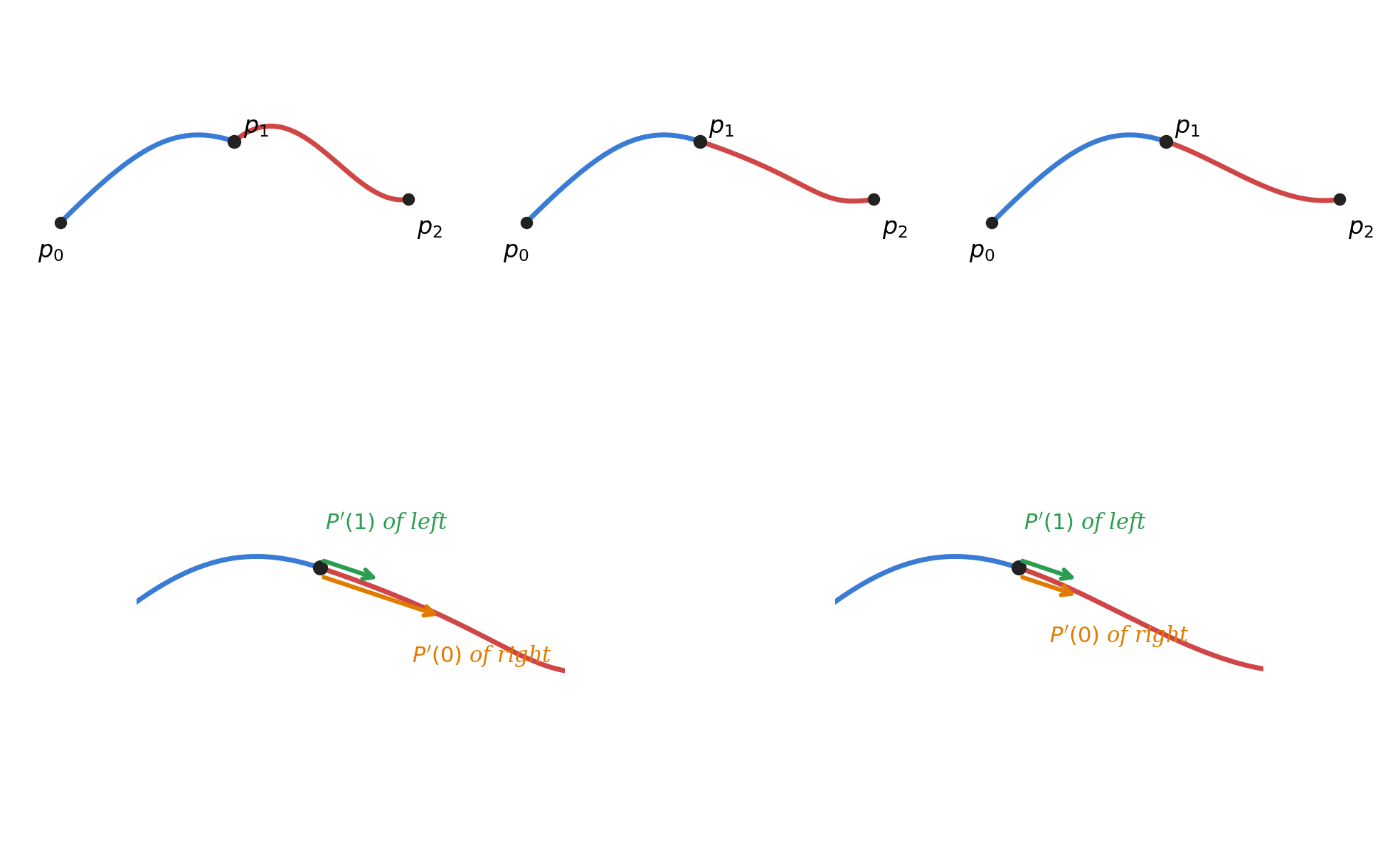
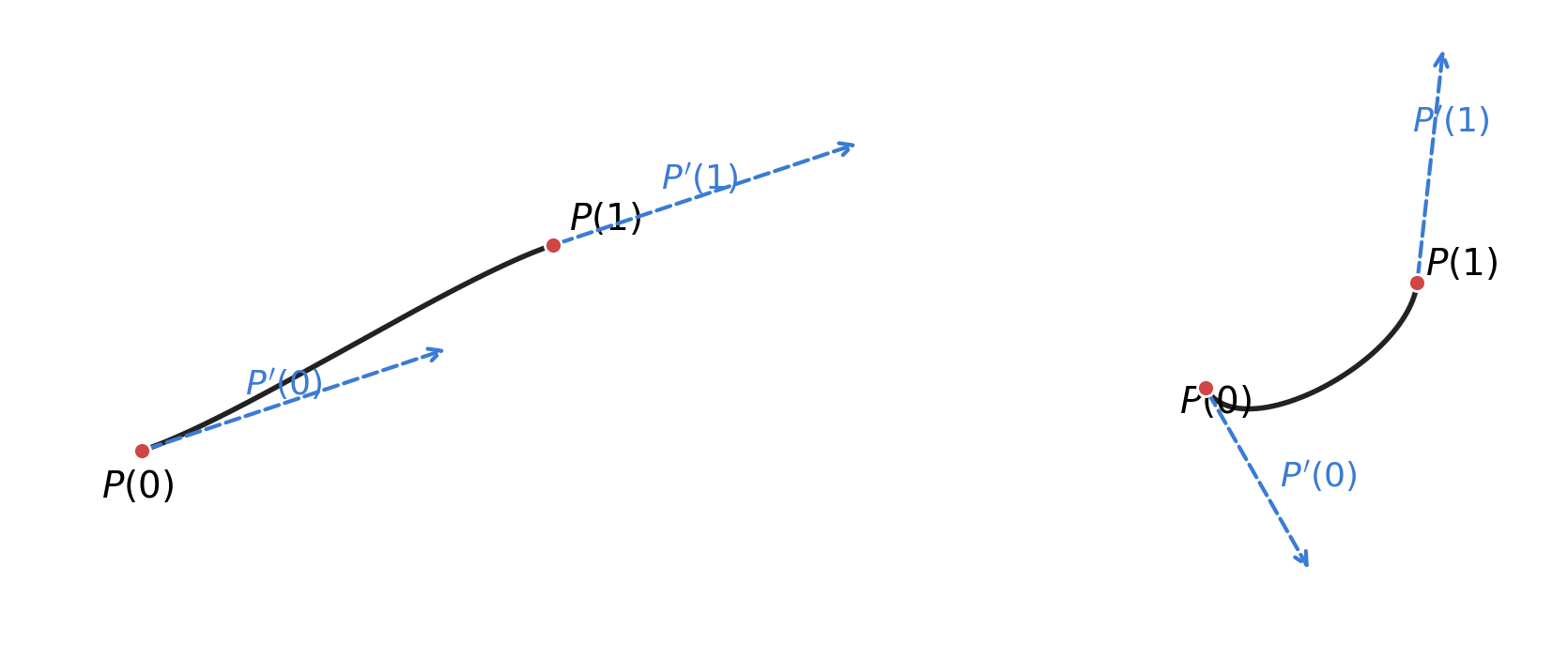
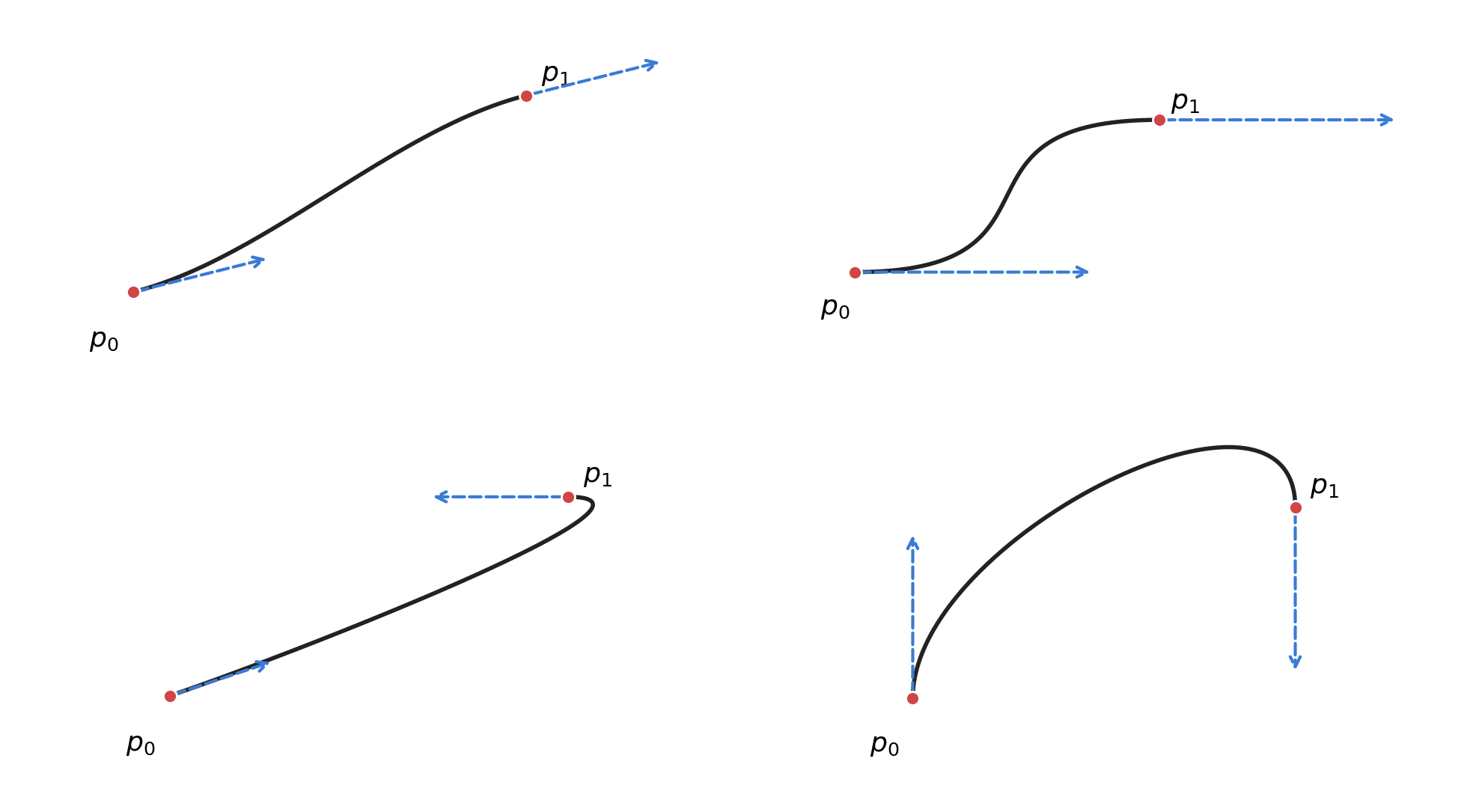
                <figure>
                    <img alt="Two Hermite segments sharing the same endpoint locations but driven by different tangent vectors. The endpoints fix where…" src="/img/hermite-spline/fig-1.png" width="100%" style="max-width: 700px;" onerror="handle_image_error(this)">
                    <figcaption>
                        Two Hermite segments sharing the same endpoint locations
                        but driven by different tangent vectors.
                        The endpoints fix where the curve goes;
                        the tangents fix the entry/exit direction and speed.
                    </figcaption>
                </figure>
            </li>
            <br>

            <li>
                Holding the endpoints fixed and only varying the <b>tangent vectors</b>
                already gives a rich family of shapes.
                A longer tangent means the curve "lingers" longer in that direction
                before turning toward the other endpoint.

                <figure>
                    <img alt="Same endpoints, four different tangent configurations. Top-left: short tangents in the natural direction. Top-right: long…" src="/img/hermite-spline/fig-2.png" width="100%" style="max-width: 700px;" onerror="handle_image_error(this)">
                    <figcaption>
                        Same endpoints, four different tangent configurations.
                        Top-left: short tangents in the natural direction.
                        Top-right: long tangents both horizontal — the curve "lingers" before turning.
                        Bottom-left: tangent at \(p_1\) reversed — the curve overshoots and returns.
                        Bottom-right: tangents perpendicular and opposite — the curve arches above and descends into \(p_1\).
                    </figcaption>
                </figure>
            </li>
        </ul>
    <br>

    <li>
        Continuity at Joints
    </li>
        <ul>
            <li>
                When two segments meet, the joint can be smooth or kinked.
                "How smooth" is captured by two related but different notions:
                <b>geometric continuity</b> \(G^n\) and <b>parametric continuity</b> \(C^n\).
            </li>
            <br>

            <li>
                <mark>Geometric continuity \(G^n\)</mark>
                depends only on the <b>shape</b> at the joint and is invariant
                under any orientation-preserving regular reparameterization
                (one whose derivative stays positive).
                <ul>
                    <li>
                        \(G^0\): the two segments share the joint point — they touch.
                    </li>
                    <li>
                        \(G^1\): in addition to \(G^0\), their tangent <b>directions</b> agree at the joint.
                        The magnitudes are allowed to differ.
                    </li>
                    <li>
                        \(G^n\): the two segments can be reparameterized so that
                        all derivatives up to order \(n\) agree at the joint.
                        Equivalently, the geometric invariants line up —
                        tangent direction for \(G^1\), curvature (including its center) for \(G^2\),
                        torsion for \(G^3\).
                        For \(n \geq 2\) this is stronger than just "\(n\)-th derivative directions match";
                        \(G^2\) demands a common center of curvature, not merely parallel second derivatives.
                    </li>
                </ul>
            </li>
            <br>

            <li>
                <mark>Parametric continuity \(C^n\)</mark>
                is the stricter version: at the joint
                the \(n\)-th derivatives must be <b>equal as vectors</b>
                (same direction <em>and</em> same magnitude).
                Concretely, \(C^1\) requires the tangent vectors \(P'(u)\) on both sides to be equal —
                which simultaneously pins down direction and parametric speed \(|P'(u)|\).
                Higher \(C^n\) extends this to equality of all derivatives up to order \(n\).
                <br><br>
                At <em>regular</em> points (where \(P'(u) \neq 0\)),
                \(C^n\) implies \(G^n\), but not the other way around.
                Two segments can share a smooth-looking tangent direction (\(G^1\))
                while their parameter speeds differ (not \(C^1\)).
                The implication can fail at <em>stationary</em> points where \(P'(u) = 0\):
                the canonical example is \(\alpha(t) = (t^2, t^3)\),
                which is \(C^\infty\) in \(t\) but has a geometric cusp at the origin.
            </li>
            <br>

            <li>
                The diagram below makes the staircase concrete.
                Top row: geometric continuity — increasing visual smoothness.
                Bottom row: at the joint, only the direction must match for \(G^1\),
                whereas \(C^1\) demands the full tangent vector.

                <figure>
                    <img alt="Top: geometric continuity from (touching only) through (tangent direction matches) to (curvature also matches). Bottom: only…" src="/img/hermite-spline/fig-3.png" width="100%" style="max-width: 700px;" onerror="handle_image_error(this)">
                    <figcaption>
                        Top: geometric continuity from \(G^0\) (touching only)
                        through \(G^1\) (tangent direction matches) to \(G^2\) (curvature also matches).
                        Bottom: \(G^1\) only requires matching tangent <em>directions</em>;
                        \(C^1\) requires the full tangent vectors to be equal.
                    </figcaption>
                </figure>
            </li>
            <br>

            <li>
                Why Hermite splines make this easy: each segment <b>directly exposes</b>
                its endpoint tangents \(P'(0), P'(1)\) as control elements.
                To enforce \(C^1\) at a joint between segment \(i\) and \(i+1\),
                set \(P'_i(1) = P'_{i+1}(0)\). To enforce only \(G^1\),
                require \(P'_{i+1}(0) = \alpha\, P'_i(1)\) for some scalar \(\alpha &gt; 0\).
            </li>
        </ul>
    <br>

    <li>
        Generation: from Control Elements to \(P(u)\)
    </li>
        <ul>
            <li>
                A cubic curve has four unknown coefficient vectors:
                \[
                    P(u) = a u^3 + b u^2 + c u + d, \qquad
                    P'(u) = 3 a u^2 + 2 b u + c
                \]
                <br>
                Plugging in \(u = 0\) and \(u = 1\) gives four equations:
                \[
                    \begin{aligned}
                        P(0) &= d \\
                        P(1) &= a + b + c + d \\
                        P'(0) &= c \\
                        P'(1) &= 3a + 2b + c
                    \end{aligned}
                \]
                <br>
                Solving for \(a, b, c, d\) and substituting back yields the Hermite form:
                \[
                    \,\\
                    P(u) =
                    (2u^3 - 3u^2 + 1)\,P(0)
                    + (-2u^3 + 3u^2)\,P(1)
                    + (u^3 - 2u^2 + u)\,P'(0)
                    + (u^3 - u^2)\,P'(1)
                    \,\\
                \]
                The four polynomials in front of the control elements are the
                <mark>Hermite blending functions</mark>.
                The position pair is a partition of unity — \(h_{00}(u) + h_{01}(u) = 1\) —
                so when both tangents are zero the curve stays in the affine hull of \(P(0), P(1)\)
                (a straight line segment between them).
                The tangent pair \(h_{10}, h_{11}\) are vector weights, not affine weights;
                they can be negative and they don't sum to anything special.
            </li>
            <br>

            <li>
                Notice two structural properties that come straight from the
                interpolation conditions \(h_{ij}(0)\) and \(h_{ij}(1)\):
                <ul>
                    <li>
                        At \(u = 0\): \(h_{00} = 1\), all others = 0. So \(P(0) = P(0)\).
                    </li>
                    <li>
                        At \(u = 1\): \(h_{01} = 1\), all others = 0. So \(P(1) = P(1)\).
                    </li>
                    <li>
                        The tangent blends \(h_{10}, h_{11}\) vanish at both endpoints,
                        so changing tangent magnitudes only bends the curve in the middle —
                        it never moves the endpoints.
                    </li>
                </ul>
            </li>
        </ul>
    <br>

    <li>
        Worked Example
    </li>
        <ul>
            <li>
                Take the four control elements from the lecture:
                \[
                    P(0) = \begin{bmatrix} 1 \\ 1 \end{bmatrix},\;
                    P(1) = \begin{bmatrix} 5 \\ 3 \end{bmatrix},\;
                    P'(0) = \begin{bmatrix} 3 \\ 0 \end{bmatrix},\;
                    P'(1) = \begin{bmatrix} 6 \\ -3 \end{bmatrix}
                \]
                Substituting into the Hermite form:
                \[
                    \begin{aligned}
                    P(u) &=
                    \begin{bmatrix} 1 \\ 1 \end{bmatrix}(2u^3 - 3u^2 + 1)
                    + \begin{bmatrix} 5 \\ 3 \end{bmatrix}(-2u^3 + 3u^2) \\
                    &\quad + \begin{bmatrix} 3 \\ 0 \end{bmatrix}(u^3 - 2u^2 + u)
                    + \begin{bmatrix} 6 \\ -3 \end{bmatrix}(u^3 - u^2) \\
                    &= \begin{bmatrix} u^3 + 3u + 1 \\ -7u^3 + 9u^2 + 1 \end{bmatrix}
                    \end{aligned}
                \]
            </li>
            <br>

            <li>
                Sanity-check the boundary values:
                \(P(0) = (1, 1)\), \(P(1) = (1+3+1,\; -7+9+1) = (5, 3)\). Both endpoints land.
                Differentiating: \(P'(u) = (3u^2 + 3,\; -21u^2 + 18u)\),
                so \(P'(0) = (3, 0)\) and \(P'(1) = (6, -3)\). Both tangents land.
            </li>
            <br>

            <li>
                Sampling \(P(u)\) at \(u = 0, 0.1, 0.2, \dots, 1\)
                produces the curve drawn below.
                The dashed arrows are the prescribed tangents
                at the two endpoints.

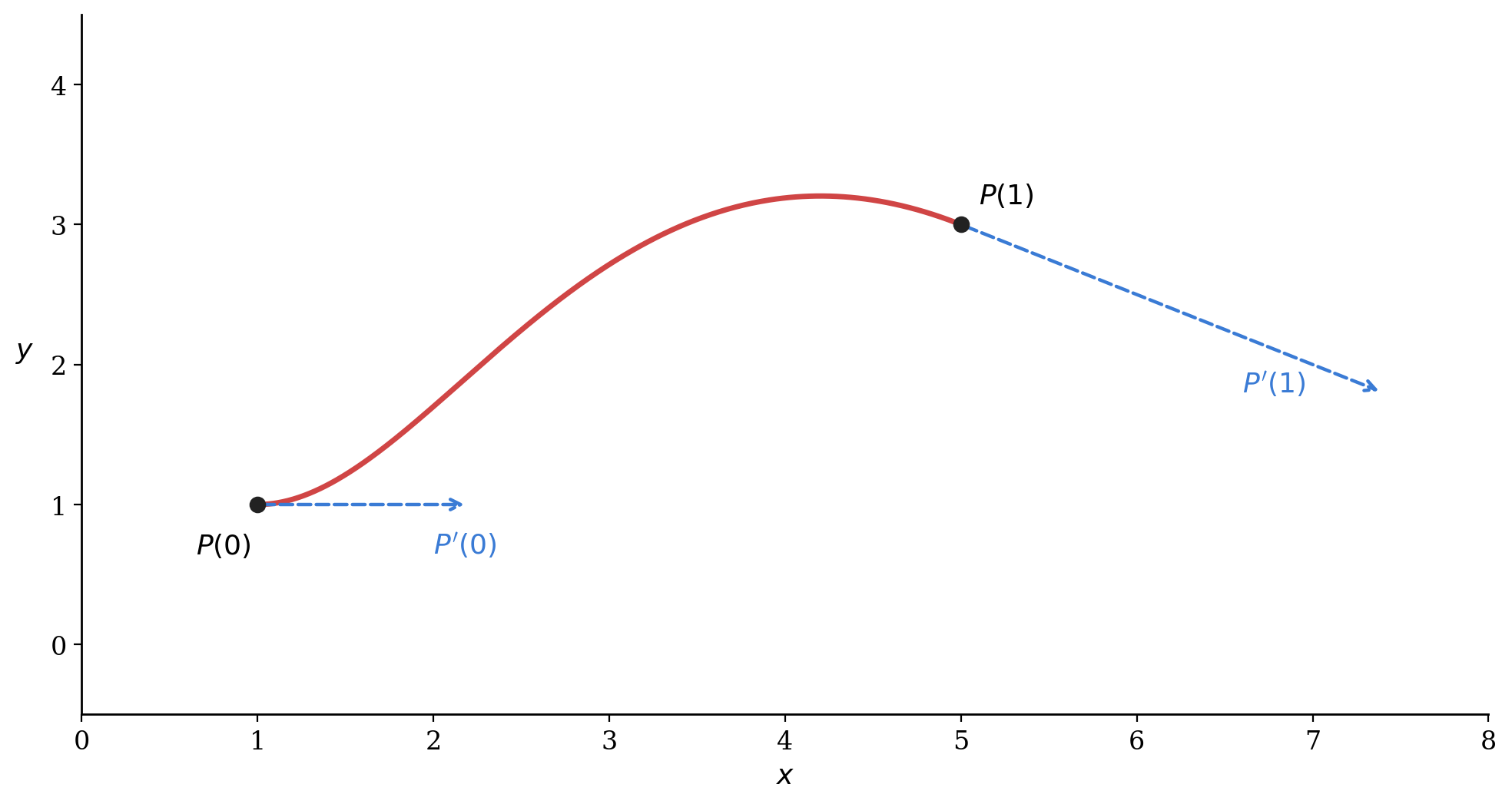
                <figure>
                    <img alt="The Hermite curve generated from , , , . It leaves horizontally (the start tangent has zero component), rises past , and…" src="/img/hermite-spline/fig-5.png" width="100%" style="max-width: 700px;" onerror="handle_image_error(this)">
                    <figcaption>
                        The Hermite curve generated from
                        \(P(0) = (1,1)\), \(P(1) = (5,3)\), \(P'(0) = (3,0)\), \(P'(1) = (6,-3)\).
                        It leaves \(P(0)\) horizontally (the start tangent has zero \(y\) component),
                        rises past \(P(1)\), and arrives at \(P(1)\) heading down-right.
                    </figcaption>
                </figure>
            </li>
        </ul>
    <br>

    <li>
        Matrix Form
    </li>
        <ul>
            <li>
                Writing the cubic as \(P(u) = [a\;b\;c\;d]\,U\) with \(U = [u^3, u^2, u, 1]^T\)
                and stacking the four boundary conditions in matrix form,
                we get:
                \[
                    [P(0)\;\; P(1)\;\; P'(0)\;\; P'(1)]
                    =
                    [a\;b\;c\;d]
                    \begin{bmatrix}
                        0 & 1 & 0 & 3 \\
                        0 & 1 & 0 & 2 \\
                        0 & 1 & 1 & 1 \\
                        1 & 1 & 0 & 0
                    \end{bmatrix}
                \]
                Inverting that matrix gives the
                <mark>Hermite basis matrix</mark> \(M_H\):
                \[
                    M_H =
                    \begin{bmatrix}
                        \phantom{-}2 & -3 & \phantom{-}0 & \phantom{-}1 \\
                        -2 & \phantom{-}3 & \phantom{-}0 & \phantom{-}0 \\
                        \phantom{-}1 & -2 & \phantom{-}1 & \phantom{-}0 \\
                        \phantom{-}1 & -1 & \phantom{-}0 & \phantom{-}0
                    \end{bmatrix}
                \]
                and the curve becomes a clean sandwich:
                \[
                    \,\\
                    P(u) =
                    \underbrace{[\,P(0)\;\; P(1)\;\; P'(0)\;\; P'(1)\,]}_{\text{control}}
                    \cdot
                    \underbrace{M_H}_{\text{basis}}
                    \cdot
                    \underbrace{\begin{bmatrix} u^3 \\ u^2 \\ u \\ 1 \end{bmatrix}}_{\text{parameter}}
                    \,\\
                \]
            </li>
            <br>

            <li>
                Each row of \(M_H \cdot U\) is exactly one of the four blending functions:
                \[
                    M_H
                    \begin{bmatrix} u^3 \\ u^2 \\ u \\ 1 \end{bmatrix}
                    =
                    \begin{bmatrix}
                        2u^3 - 3u^2 + 1 \\
                        -2u^3 + 3u^2 \\
                        u^3 - 2u^2 + u \\
                        u^3 - u^2
                    \end{bmatrix}
                \]
                <br>
                The same factorization (control · basis · parameter) shows up
                per-segment for Bézier curves and for uniform B-spline segments —
                same shape, different basis matrix.
                (General non-uniform B-splines are evaluated by the Cox–de Boor recursion
                rather than one global matrix, but each cubic segment can still be put in this form.)
                Once you internalize the shape, switching between these families
                becomes "swap the basis matrix and keep the rest."
            </li>
        </ul>
</ul>

<br><br>]]></content><author><name>pch</name></author><category term="note" /><summary type="html"><![CDATA[Why Splines A single high-degree polynomial that passes through many points tends to wiggle uncontrollably between them (Runge's phenomenon). The fix is to break the curve into short pieces and stitch them together so the joints look smooth. Each piece is a low-degree polynomial — usually cubic. The collection is called a spline. The cubic Hermite spline is the simplest member of this family that lets you specify both endpoint positions and endpoint tangents directly. Each segment is defined by just four pieces of information: the two endpoints, and the tangent vectors at those endpoints. "Where you start, where you end, and how fast you leave / arrive (in the parameter \(u\), not in arc length)" is enough to pin down a unique cubic. Definition A Hermite segment uses four control elements: two endpoints \(P(0), P(1)\) and two tangent vectors \(P'(0), P'(1)\). The segment itself is a cubic polynomial in a parameter \(u \in [0, 1]\): \[ P(u) = a u^3 + b u^2 + c u + d \] The four unknown coefficient vectors \(a, b, c, d\) are uniquely determined by the four control elements. Visually, the endpoints fix where the curve passes, and the tangent vectors fix which way and how strongly it leaves and arrives. Two Hermite segments sharing the same endpoint locations but driven by different tangent vectors. The endpoints fix where the curve goes; the tangents fix the entry/exit direction and speed. Holding the endpoints fixed and only varying the tangent vectors already gives a rich family of shapes. A longer tangent means the curve "lingers" longer in that direction before turning toward the other endpoint. Same endpoints, four different tangent configurations. Top-left: short tangents in the natural direction. Top-right: long tangents both horizontal — the curve "lingers" before turning. Bottom-left: tangent at \(p_1\) reversed — the curve overshoots and returns. Bottom-right: tangents perpendicular and opposite — the curve arches above and descends into \(p_1\). Continuity at Joints When two segments meet, the joint can be smooth or kinked. "How smooth" is captured by two related but different notions: geometric continuity \(G^n\) and parametric continuity \(C^n\). Geometric continuity \(G^n\) depends only on the shape at the joint and is invariant under any orientation-preserving regular reparameterization (one whose derivative stays positive). \(G^0\): the two segments share the joint point — they touch. \(G^1\): in addition to \(G^0\), their tangent directions agree at the joint. The magnitudes are allowed to differ. \(G^n\): the two segments can be reparameterized so that all derivatives up to order \(n\) agree at the joint. Equivalently, the geometric invariants line up — tangent direction for \(G^1\), curvature (including its center) for \(G^2\), torsion for \(G^3\). For \(n \geq 2\) this is stronger than just "\(n\)-th derivative directions match"; \(G^2\) demands a common center of curvature, not merely parallel second derivatives. Parametric continuity \(C^n\) is the stricter version: at the joint the \(n\)-th derivatives must be equal as vectors (same direction and same magnitude). Concretely, \(C^1\) requires the tangent vectors \(P'(u)\) on both sides to be equal — which simultaneously pins down direction and parametric speed \(|P'(u)|\). Higher \(C^n\) extends this to equality of all derivatives up to order \(n\). At regular points (where \(P'(u) \neq 0\)), \(C^n\) implies \(G^n\), but not the other way around. Two segments can share a smooth-looking tangent direction (\(G^1\)) while their parameter speeds differ (not \(C^1\)). The implication can fail at stationary points where \(P'(u) = 0\): the canonical example is \(\alpha(t) = (t^2, t^3)\), which is \(C^\infty\) in \(t\) but has a geometric cusp at the origin. The diagram below makes the staircase concrete. Top row: geometric continuity — increasing visual smoothness. Bottom row: at the joint, only the direction must match for \(G^1\), whereas \(C^1\) demands the full tangent vector. Top: geometric continuity from \(G^0\) (touching only) through \(G^1\) (tangent direction matches) to \(G^2\) (curvature also matches). Bottom: \(G^1\) only requires matching tangent directions; \(C^1\) requires the full tangent vectors to be equal. Why Hermite splines make this easy: each segment directly exposes its endpoint tangents \(P'(0), P'(1)\) as control elements. To enforce \(C^1\) at a joint between segment \(i\) and \(i+1\), set \(P'_i(1) = P'_{i+1}(0)\). To enforce only \(G^1\), require \(P'_{i+1}(0) = \alpha\, P'_i(1)\) for some scalar \(\alpha &gt; 0\). Generation: from Control Elements to \(P(u)\) A cubic curve has four unknown coefficient vectors: \[ P(u) = a u^3 + b u^2 + c u + d, \qquad P'(u) = 3 a u^2 + 2 b u + c \] Plugging in \(u = 0\) and \(u = 1\) gives four equations: \[ \begin{aligned} P(0) &= d \\ P(1) &= a + b + c + d \\ P'(0) &= c \\ P'(1) &= 3a + 2b + c \end{aligned} \] Solving for \(a, b, c, d\) and substituting back yields the Hermite form: \[ \,\\ P(u) = (2u^3 - 3u^2 + 1)\,P(0) + (-2u^3 + 3u^2)\,P(1) + (u^3 - 2u^2 + u)\,P'(0) + (u^3 - u^2)\,P'(1) \,\\ \] The four polynomials in front of the control elements are the Hermite blending functions. The position pair is a partition of unity — \(h_{00}(u) + h_{01}(u) = 1\) — so when both tangents are zero the curve stays in the affine hull of \(P(0), P(1)\) (a straight line segment between them). The tangent pair \(h_{10}, h_{11}\) are vector weights, not affine weights; they can be negative and they don't sum to anything special. Notice two structural properties that come straight from the interpolation conditions \(h_{ij}(0)\) and \(h_{ij}(1)\): At \(u = 0\): \(h_{00} = 1\), all others = 0. So \(P(0) = P(0)\). At \(u = 1\): \(h_{01} = 1\), all others = 0. So \(P(1) = P(1)\). The tangent blends \(h_{10}, h_{11}\) vanish at both endpoints, so changing tangent magnitudes only bends the curve in the middle — it never moves the endpoints. Worked Example Take the four control elements from the lecture: \[ P(0) = \begin{bmatrix} 1 \\ 1 \end{bmatrix},\; P(1) = \begin{bmatrix} 5 \\ 3 \end{bmatrix},\; P'(0) = \begin{bmatrix} 3 \\ 0 \end{bmatrix},\; P'(1) = \begin{bmatrix} 6 \\ -3 \end{bmatrix} \] Substituting into the Hermite form: \[ \begin{aligned} P(u) &= \begin{bmatrix} 1 \\ 1 \end{bmatrix}(2u^3 - 3u^2 + 1) + \begin{bmatrix} 5 \\ 3 \end{bmatrix}(-2u^3 + 3u^2) \\ &\quad + \begin{bmatrix} 3 \\ 0 \end{bmatrix}(u^3 - 2u^2 + u) + \begin{bmatrix} 6 \\ -3 \end{bmatrix}(u^3 - u^2) \\ &= \begin{bmatrix} u^3 + 3u + 1 \\ -7u^3 + 9u^2 + 1 \end{bmatrix} \end{aligned} \] Sanity-check the boundary values: \(P(0) = (1, 1)\), \(P(1) = (1+3+1,\; -7+9+1) = (5, 3)\). Both endpoints land. Differentiating: \(P'(u) = (3u^2 + 3,\; -21u^2 + 18u)\), so \(P'(0) = (3, 0)\) and \(P'(1) = (6, -3)\). Both tangents land. Sampling \(P(u)\) at \(u = 0, 0.1, 0.2, \dots, 1\) produces the curve drawn below. The dashed arrows are the prescribed tangents at the two endpoints. The Hermite curve generated from \(P(0) = (1,1)\), \(P(1) = (5,3)\), \(P'(0) = (3,0)\), \(P'(1) = (6,-3)\). It leaves \(P(0)\) horizontally (the start tangent has zero \(y\) component), rises past \(P(1)\), and arrives at \(P(1)\) heading down-right. Matrix Form Writing the cubic as \(P(u) = [a\;b\;c\;d]\,U\) with \(U = [u^3, u^2, u, 1]^T\) and stacking the four boundary conditions in matrix form, we get: \[ [P(0)\;\; P(1)\;\; P'(0)\;\; P'(1)] = [a\;b\;c\;d] \begin{bmatrix} 0 & 1 & 0 & 3 \\ 0 & 1 & 0 & 2 \\ 0 & 1 & 1 & 1 \\ 1 & 1 & 0 & 0 \end{bmatrix} \] Inverting that matrix gives the Hermite basis matrix \(M_H\): \[ M_H = \begin{bmatrix} \phantom{-}2 & -3 & \phantom{-}0 & \phantom{-}1 \\ -2 & \phantom{-}3 & \phantom{-}0 & \phantom{-}0 \\ \phantom{-}1 & -2 & \phantom{-}1 & \phantom{-}0 \\ \phantom{-}1 & -1 & \phantom{-}0 & \phantom{-}0 \end{bmatrix} \] and the curve becomes a clean sandwich: \[ \,\\ P(u) = \underbrace{[\,P(0)\;\; P(1)\;\; P'(0)\;\; P'(1)\,]}_{\text{control}} \cdot \underbrace{M_H}_{\text{basis}} \cdot \underbrace{\begin{bmatrix} u^3 \\ u^2 \\ u \\ 1 \end{bmatrix}}_{\text{parameter}} \,\\ \] Each row of \(M_H \cdot U\) is exactly one of the four blending functions: \[ M_H \begin{bmatrix} u^3 \\ u^2 \\ u \\ 1 \end{bmatrix} = \begin{bmatrix} 2u^3 - 3u^2 + 1 \\ -2u^3 + 3u^2 \\ u^3 - 2u^2 + u \\ u^3 - u^2 \end{bmatrix} \] The same factorization (control · basis · parameter) shows up per-segment for Bézier curves and for uniform B-spline segments — same shape, different basis matrix. (General non-uniform B-splines are evaluated by the Cox–de Boor recursion rather than one global matrix, but each cubic segment can still be put in this form.) Once you internalize the shape, switching between these families becomes "swap the basis matrix and keep the rest."]]></summary></entry><entry><title type="html">언어의 한계</title><link href="https://parkcheolhee-lab.github.io/limits-of-language/" rel="alternate" type="text/html" title="언어의 한계" /><published>2026-04-17T00:00:00+00:00</published><updated>2026-04-17T00:00:00+00:00</updated><id>https://parkcheolhee-lab.github.io/limits-of-language</id><content type="html" xml:base="https://parkcheolhee-lab.github.io/limits-of-language/"><![CDATA[<br>

<div style="text-align: justify;">
  
  언어모델
  <br>
  비트겐슈타인
  <br>
  언어의 한계 = 세계의 한계
  <br>
  언어화 하기 쉬운 분야와 어려운 분야간의 인공지능 시차
  <br>
  암묵지

</div>

<br><br>]]></content><author><name>pch</name></author><category term="note" /><summary type="html"><![CDATA[언어모델 비트겐슈타인 언어의 한계 = 세계의 한계 언어화 하기 쉬운 분야와 어려운 분야간의 인공지능 시차 암묵지]]></summary></entry><entry><title type="html">Triangle Menu-Aim</title><link href="https://parkcheolhee-lab.github.io/triangle-menu-aim/" rel="alternate" type="text/html" title="Triangle Menu-Aim" /><published>2026-04-09T00:00:00+00:00</published><updated>2026-04-09T00:00:00+00:00</updated><id>https://parkcheolhee-lab.github.io/triangle-menu-aim</id><content type="html" xml:base="https://parkcheolhee-lab.github.io/triangle-menu-aim/"><![CDATA[<br>

<ul>
    <li>
        The Problem
    </li>
        <ul>
            <li>
                In interfaces with densely packed interactive elements,
                moving the cursor diagonally from a node to its tooltip (or submenu) often causes
                the cursor to pass over other nodes along the way.
                Each crossed node fires a <code>mouseenter</code> event, replacing the intended tooltip with an unrelated one.
                The result is a frustrating flicker effect.
            </li>
            <li>
                This is exactly the situation that arises in
                <a href="/">latentspace.js</a>,
                the D3.js post map on this blog.
                Hundreds of nodes float in a small viewport.
                When a user hovers a node and wants to click its tooltip, the cursor inevitably crosses neighboring nodes,
                breaking the hover state before reaching the target.
            </li>
        </ul>
    <br>
    <li>
        Amazon's Mega Menu and the Triangle Trick
    </li>
        <ul>
            <li>
                Amazon solved a nearly identical problem in their <mark>mega dropdown menu</mark> around 2013.
                When a user hovers a top-level category, a large submenu panel appears to the side.
                Moving the cursor toward the panel requires a diagonal motion,
                which crosses other menu items and triggers their submenus instead.
            </li>
            <li>
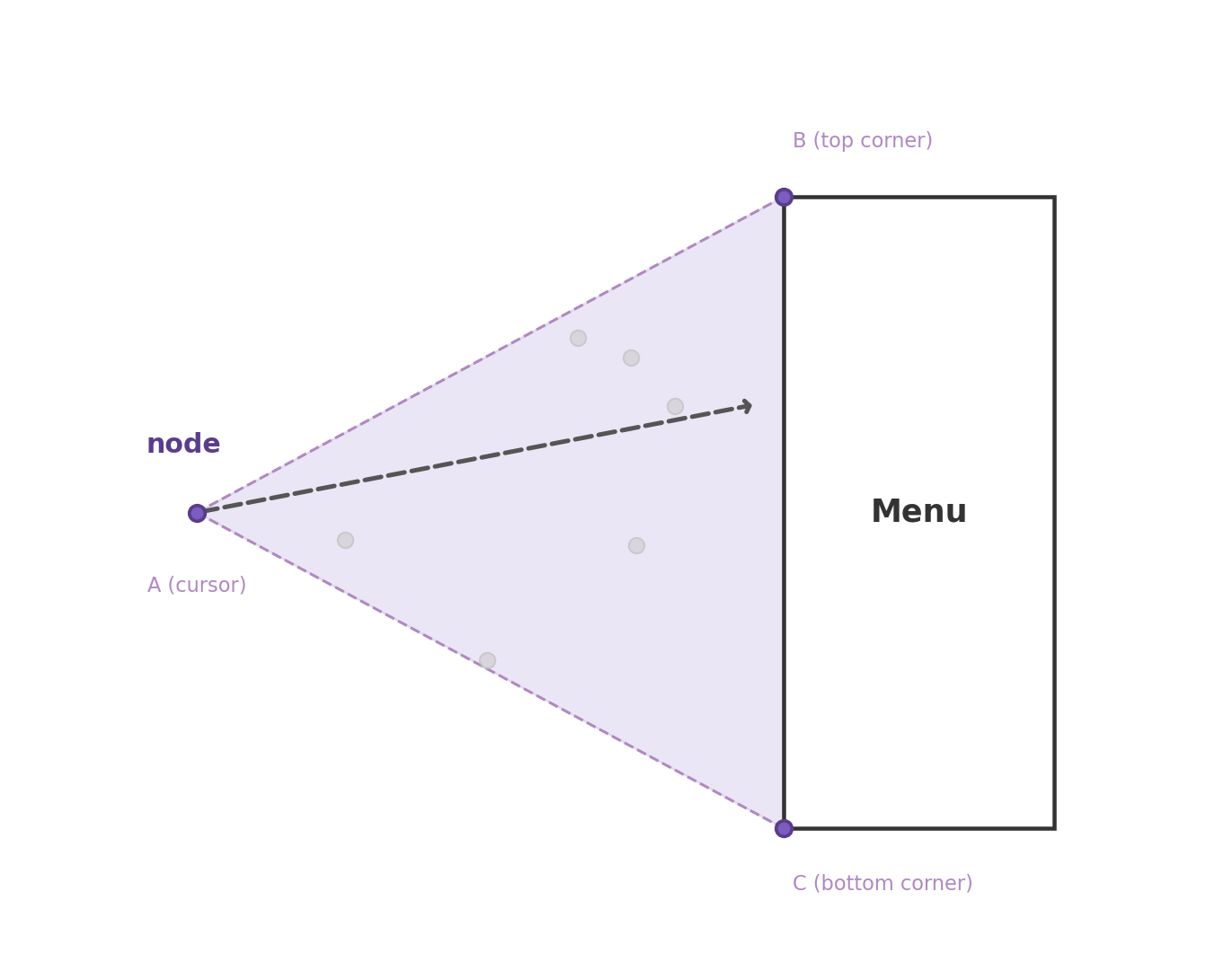
                The solution: construct an invisible triangle from the <b>current cursor position</b>
                to the <b>two far corners of the open submenu</b>.
                As long as the cursor remains inside this triangle,
                the system assumes the user is heading toward the submenu and suppresses any new hover events.

                <figure>
                    <img alt="The cursor (apex) and the two corners of the tooltip form a triangle. While the cursor stays inside this triangle, hover…" src="/img/triangle-menu-aim/triangle-menu-aim.png" width="70%" onerror="handle_image_error(this)">
                    <figcaption>
                        The cursor (apex) and the two corners of the tooltip form a triangle.
                        While the cursor stays inside this triangle, hover changes on intermediate nodes are suppressed.
                    </figcaption>
                </figure>
            </li>
            <br>
            <li>
                This pattern is sometimes called the <mark>menu-aim pattern</mark>,
                and it can be seen as an extension of <a href="https://en.wikipedia.org/wiki/Fitts%27s_law">Fitts's Law</a>:
                the effective target area is enlarged by considering the user's <b>movement direction</b>,
                not just the target's static bounding box.
            </li>
        </ul>
    <br>
    <li>
        Point-in-Triangle Test
    </li>
        <ul>
            <li>
                The core math behind the triangle trick is the <b>point-in-triangle test</b> using the sign of cross products.
                Given a triangle with vertices \(A\), \(B\), \(C\) and a query point \(P\),
                compute the following three cross product signs:

                \[
                d_1 = (P - A) \times (B - A)
                \]
                \[
                d_2 = (P - B) \times (C - B)
                \]
                \[
                d_3 = (P - C) \times (A - C)
                \]

                <br>

                where the 2D cross product of vectors \(\mathbf{u} = (u_x, u_y)\) and \(\mathbf{v} = (v_x, v_y)\) is:

                \[
                \mathbf{u} \times \mathbf{v} = u_x v_y - u_y v_x
                \]
            </li>
            <br>
            <li>
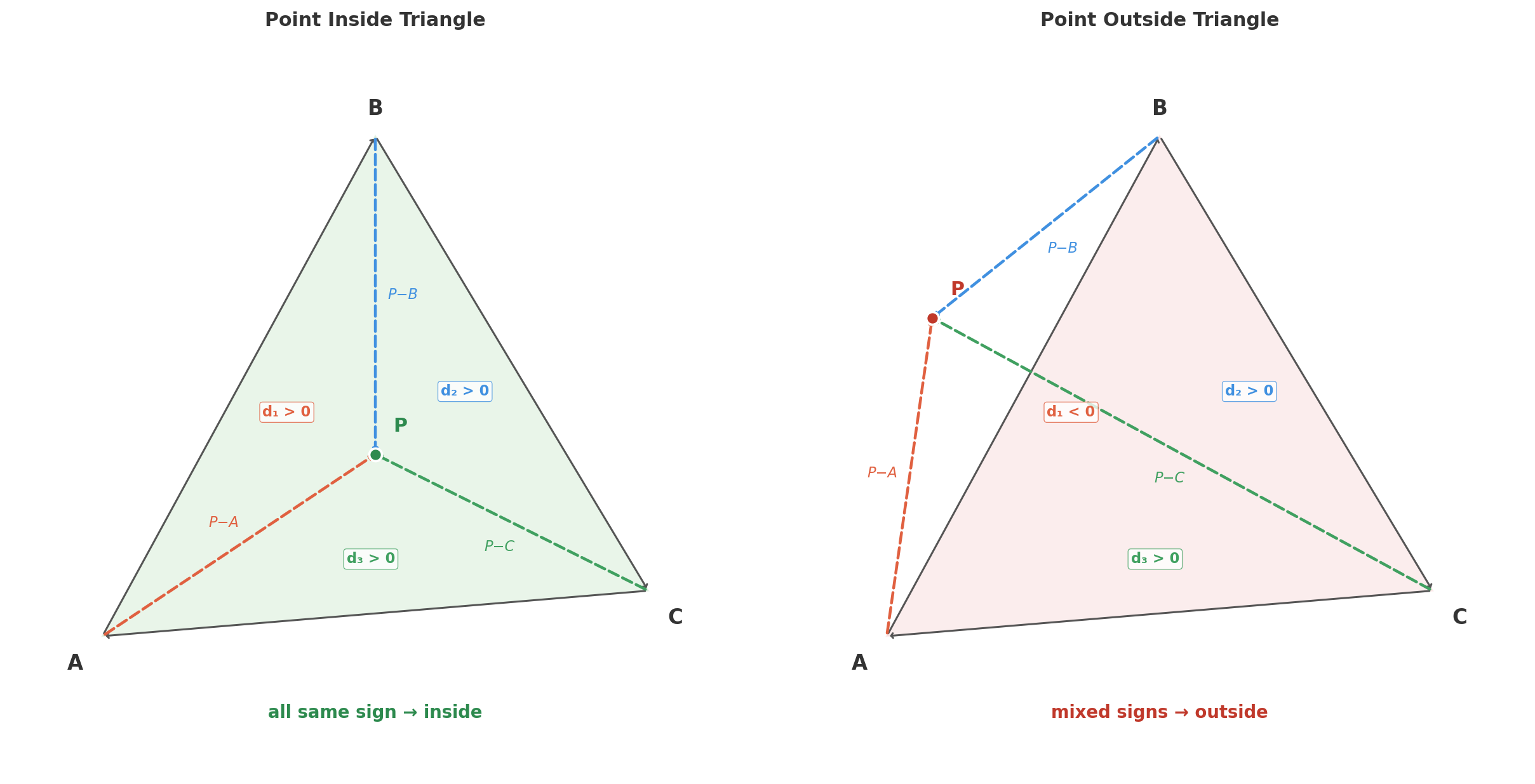
                If all three values \(d_1, d_2, d_3\) share the <b>same sign</b> (all positive or all negative),
                the point \(P\) lies inside the triangle.
                If any sign differs, the point is outside.

                <br><br>

                This works because traversing the triangle edges in order (A → B → C)
                creates a consistent winding direction.
                A point inside the triangle will always be on the same side of every edge.

                <br><br>

                <figure>
                    <img alt="Left: P inside the triangle — all cross products share the same sign. Right: P outside — d₁ has opposite sign from d₂ and d₃." src="/img/triangle-menu-aim/point-in-triangle.png" width="100%" onerror="handle_image_error(this)">
                    <figcaption>
                        Left: P inside the triangle — all cross products share the same sign.
                        Right: P outside — d₁ has opposite sign from d₂ and d₃.
                    </figcaption>
                </figure>
            </li>
            <br>
            <li>
                In the implementation, the <code>tri_sign</code> function computes this 2D cross product:

<pre><code class="javascript">
    function tri_sign(x1, y1, x2, y2, x3, y3) {
        return (x1 - x3) * (y2 - y3) - (x2 - x3) * (y1 - y3);
    }

    function point_in_triangle(px, py, ax, ay, bx, by, cx, cy) {
        var d1 = tri_sign(px, py, ax, ay, bx, by);
        var d2 = tri_sign(px, py, bx, by, cx, cy);
        var d3 = tri_sign(px, py, cx, cy, ax, ay);
        return !((d1 < 0 || d2 < 0 || d3 < 0) && (d1 > 0 || d2 > 0 || d3 > 0));
    }
</code></pre>

                The final boolean expression is equivalent to checking
                <code>!(has_negative && has_positive)</code>,
                which is true only when all signs agree.
            </li>
        </ul>
    <br>
    <li>
        Building the Intent Triangle
    </li>
        <ul>
            <li>
                In latentspace.js, when the mouse leaves a node,
                the system constructs a triangle before deciding whether to dismiss the tooltip.
                The three vertices are:

                <ol>
                    <br>
                    <li>
                        <b>Apex (A)</b>: the screen position of the currently hovered node
                    </li>
                    <li>
                        <b>Corner B</b>: one far edge of the tooltip bounding box (with padding)
                    </li>
                    <li>
                        <b>Corner C</b>: the opposite far edge of the tooltip bounding box (with padding)
                    </li>
                </ol>
            </li>
            <li>
                The tooltip can appear either left or right of the node depending on available space,
                so the triangle flips accordingly:

<pre><code class="javascript">
    function build_intent_triangle() {
        // ... get node screen position (dot_x, dot_y)
        // ... get tooltip rect (tt_left, tt_top, tt_w, tt_h)
        var pad = 6;
        return {
            ax: dot_x, ay: dot_y,
            bx: tt_left < dot_x ? tt_left - pad : tt_left + tt_w + pad,
            by: tt_top - pad,
            cx: tt_left < dot_x ? tt_left - pad : tt_left + tt_w + pad,
            cy: tt_top + tt_h + pad
        };
    }
</code></pre>

                Here, vertices B and C share the same x-coordinate (the far edge of the tooltip),
                but differ in y (top and bottom edges), forming a triangle that fans out
                from the node toward the entire height of the tooltip.
            </li>
        </ul>
    <br>
    <li>
        Integration into the Hover Flow
    </li>
        <ul>
            <li>
                The triangle is checked at two points in the event flow:

                <ol>
                    <br>
                    <li>
                        <b><code>mouseleave</code> on a node</b>:
                        The system builds the intent triangle and starts a short timer (80ms).
                        If the cursor reaches the tooltip before the timer fires,
                        the tooltip's own <code>mouseenter</code> cancels the dismiss.
                    </li>
                    <br>
                    <li>
                        <b><code>mouseenter</code> on a different node</b>:
                        Before activating the new node, the system checks
                        <code>is_moving_toward_tooltip(mx, my)</code>.
                        If the cursor is inside the intent triangle,
                        the new node's hover is <b>suppressed</b>, and the current tooltip remains.

<pre><code class="javascript">
    // inside mouseenter handler
    if (intent_triangle && active_hover_node && active_hover_node !== d) {
        var rect = container.getBoundingClientRect();
        var mx = event.clientX - rect.left;
        var my = event.clientY - rect.top;
        if (is_moving_toward_tooltip(mx, my)) return;  // suppress
    }
</code></pre>
                    </li>
                </ol>
            </li>
            <li>
                The intent triangle is cleared whenever a new node is explicitly activated,
                the cursor enters the tooltip,
                or a drag/pan interaction begins.
                This ensures the triangle only persists during the narrow window
                of diagonal cursor travel.
            </li>
        </ul>
    <br>
    <li>
        Ref
    </li>
        <ul>
            <li>
                <a href="https://github.com/PARKCHEOLHEE-lab/PARKCHEOLHEE-lab.github.io/pull/30">PARKCHEOLHEE-lab/PARKCHEOLHEE-lab.github.io#30</a> - PR that introduced the triangle intent detection
            </li>
            <li>
                <a href="https://bjk5.com/post/44698559168/breaking-down-amazons-mega-dropdown">Breaking Down Amazon's Mega Dropdown</a> - Ben Kamens' original analysis (2013)
            </li>
            <li>
                <a href="https://github.com/kamens/jQuery-menu-aim">jQuery-menu-aim</a> - jQuery plugin by Ben Kamens implementing the pattern
            </li>
            <li>
                <a href="https://en.wikipedia.org/wiki/Fitts%27s_law">Fitts's Law</a>
            </li>
        </ul>
</ul>

<br><br>]]></content><author><name>pch</name></author><category term="note" /><summary type="html"><![CDATA[The Problem In interfaces with densely packed interactive elements, moving the cursor diagonally from a node to its tooltip (or submenu) often causes the cursor to pass over other nodes along the way. Each crossed node fires a mouseenter event, replacing the intended tooltip with an unrelated one. The result is a frustrating flicker effect. This is exactly the situation that arises in latentspace.js, the D3.js post map on this blog. Hundreds of nodes float in a small viewport. When a user hovers a node and wants to click its tooltip, the cursor inevitably crosses neighboring nodes, breaking the hover state before reaching the target. Amazon's Mega Menu and the Triangle Trick Amazon solved a nearly identical problem in their mega dropdown menu around 2013. When a user hovers a top-level category, a large submenu panel appears to the side. Moving the cursor toward the panel requires a diagonal motion, which crosses other menu items and triggers their submenus instead. The solution: construct an invisible triangle from the current cursor position to the two far corners of the open submenu. As long as the cursor remains inside this triangle, the system assumes the user is heading toward the submenu and suppresses any new hover events. The cursor (apex) and the two corners of the tooltip form a triangle. While the cursor stays inside this triangle, hover changes on intermediate nodes are suppressed. This pattern is sometimes called the menu-aim pattern, and it can be seen as an extension of Fitts's Law: the effective target area is enlarged by considering the user's movement direction, not just the target's static bounding box. Point-in-Triangle Test The core math behind the triangle trick is the point-in-triangle test using the sign of cross products. Given a triangle with vertices \(A\), \(B\), \(C\) and a query point \(P\), compute the following three cross product signs: \[ d_1 = (P - A) \times (B - A) \] \[ d_2 = (P - B) \times (C - B) \] \[ d_3 = (P - C) \times (A - C) \] where the 2D cross product of vectors \(\mathbf{u} = (u_x, u_y)\) and \(\mathbf{v} = (v_x, v_y)\) is: \[ \mathbf{u} \times \mathbf{v} = u_x v_y - u_y v_x \] If all three values \(d_1, d_2, d_3\) share the same sign (all positive or all negative), the point \(P\) lies inside the triangle. If any sign differs, the point is outside. This works because traversing the triangle edges in order (A → B → C) creates a consistent winding direction. A point inside the triangle will always be on the same side of every edge. Left: P inside the triangle — all cross products share the same sign. Right: P outside — d₁ has opposite sign from d₂ and d₃. In the implementation, the tri_sign function computes this 2D cross product: function tri_sign(x1, y1, x2, y2, x3, y3) { return (x1 - x3) * (y2 - y3) - (x2 - x3) * (y1 - y3); } function point_in_triangle(px, py, ax, ay, bx, by, cx, cy) { var d1 = tri_sign(px, py, ax, ay, bx, by); var d2 = tri_sign(px, py, bx, by, cx, cy); var d3 = tri_sign(px, py, cx, cy, ax, ay); return !((d1 0 || d2 > 0 || d3 > 0)); } The final boolean expression is equivalent to checking !(has_negative && has_positive), which is true only when all signs agree. Building the Intent Triangle In latentspace.js, when the mouse leaves a node, the system constructs a triangle before deciding whether to dismiss the tooltip. The three vertices are: Apex (A): the screen position of the currently hovered node Corner B: one far edge of the tooltip bounding box (with padding) Corner C: the opposite far edge of the tooltip bounding box (with padding) The tooltip can appear either left or right of the node depending on available space, so the triangle flips accordingly: function build_intent_triangle() { // ... get node screen position (dot_x, dot_y) // ... get tooltip rect (tt_left, tt_top, tt_w, tt_h) var pad = 6; return { ax: dot_x, ay: dot_y, bx: tt_left Here, vertices B and C share the same x-coordinate (the far edge of the tooltip), but differ in y (top and bottom edges), forming a triangle that fans out from the node toward the entire height of the tooltip. Integration into the Hover Flow The triangle is checked at two points in the event flow: mouseleave on a node: The system builds the intent triangle and starts a short timer (80ms). If the cursor reaches the tooltip before the timer fires, the tooltip's own mouseenter cancels the dismiss. mouseenter on a different node: Before activating the new node, the system checks is_moving_toward_tooltip(mx, my). If the cursor is inside the intent triangle, the new node's hover is suppressed, and the current tooltip remains. // inside mouseenter handler if (intent_triangle && active_hover_node && active_hover_node !== d) { var rect = container.getBoundingClientRect(); var mx = event.clientX - rect.left; var my = event.clientY - rect.top; if (is_moving_toward_tooltip(mx, my)) return; // suppress } The intent triangle is cleared whenever a new node is explicitly activated, the cursor enters the tooltip, or a drag/pan interaction begins. This ensures the triangle only persists during the narrow window of diagonal cursor travel. Ref PARKCHEOLHEE-lab/PARKCHEOLHEE-lab.github.io#30 - PR that introduced the triangle intent detection Breaking Down Amazon's Mega Dropdown - Ben Kamens' original analysis (2013) jQuery-menu-aim - jQuery plugin by Ben Kamens implementing the pattern Fitts's Law]]></summary></entry><entry><title type="html">Daily Paper Bot</title><link href="https://parkcheolhee-lab.github.io/daily-paper-bot/" rel="alternate" type="text/html" title="Daily Paper Bot" /><published>2026-04-03T00:00:00+00:00</published><updated>2026-04-03T00:00:00+00:00</updated><id>https://parkcheolhee-lab.github.io/daily-paper-bot</id><content type="html" xml:base="https://parkcheolhee-lab.github.io/daily-paper-bot/"><![CDATA[<br>
<ul>
    <li>
        Motivation
    </li>
        <ul>
            <li>
                A bot that automatically fetches the most-upvoted paper each day from
                <a href="https://huggingface.co/papers">HuggingFace Daily Papers</a>,
                summarizes it in Korean, and posts it to Slack.
                The entire pipeline —
                <mark>paper fetch → Gemini summary → Slack post → history save</mark> —
                runs daily via a GitHub Actions cron job.
            </li>
        </ul>
    <br>
    <li>
        Architecture
    </li>
        <ul>
            <li>
                Four modules, each with a single responsibility:

                <ol>
                    <br>
                    <li>
                        <b>PaperFetcher</b> — queries the HuggingFace API.
                        On weekdays it fetches the day's #1 paper; on weekends it picks the week's top unposted paper.
                    </li>
                    <li>
                        <b>Summarizer</b> — downloads the full PDF from arXiv and passes it to <mark>Gemini 2.5 Flash</mark>
                        (chosen because Gemini offers a small free API tier — just enough for one paper a day).
                        Produces a structured Korean summary in five sections: one-liner, problem, method, results, significance.
                    </li>
                    <li>
                        <b>SlackPoster</b> — formats the summary as Slack Block Kit blocks and sends it via Incoming Webhook.
                        On failure, posts a formatted traceback to the same channel for immediate visibility.
                    </li>
                    <li>
                        <b>History</b> — stores posted paper IDs in yearly JSON files (<code>posted/2026.json</code>)
                        and auto-generates the repo's <code>README.md</code> papers table.
                    </li>
                </ol>
            </li>
        </ul>
    <br>
    <li>
        Cron Workflow
    </li>
        <ul>
            <li>
                <mark>Cron</mark> is a Unix job scheduler that runs commands at fixed times defined by a five-field expression
                (<code>minute hour day month weekday</code>).
            </li>
            <li>
                GitHub Actions' <code>schedule</code> trigger exposes the same syntax to run workflows on a recurring basis.
                This bot is set to fire daily at UTC 21:30 (KST 06:30).
                <code>workflow_dispatch</code> is also enabled for manual runs.

<pre><code class="yaml">
    on:
      schedule:
        - cron: '30 21 * * *'  # 06:30 KST daily
      workflow_dispatch:
</code></pre>
            </li>
            <br>
            <li>
                After the Python script finishes,
                the workflow auto-commits and pushes changes to <code>posted/</code> and <code>README.md</code>.
                <code>git diff --staged --quiet</code> skips the commit when there are no changes.

<pre><code class="yaml">
    - name: Save posted history
      run: |
        git config user.name "github-actions"
        git config user.email "actions@github.com"
        git add posted/ README.md
        git diff --staged --quiet || git commit -m "chore: update posted history"
        git push
</code></pre>
            </li>
            <br>
            <li>
                Only two secrets are required: <code>GEMINI_API_KEY</code> and <code>SLACK_WEBHOOK_URL</code>.
                The workflow uses <code>permissions: contents: write</code> to push directly from the action.
            </li>
        </ul>
    <br>
    <li>
        Weekday vs. Weekend
    </li>
        <ul>
            <li>
                On weekdays, the fetcher hits <code>/api/daily_papers?date=YYYY-MM-DD</code>
                and takes the top result, falling back up to 3 previous days if the date is empty.
            </li>
            <li>
                On weekends, it collects all Monday-through-Friday papers,
                sorts globally by upvote count, and picks the highest unposted one.
                Papers that were overshadowed by the daily #1 get surfaced in the weekend slot.
            </li>
        </ul>
    <br>
    <li>
        Ref
    </li>
        <ul>
<li>
                <a href="https://huggingface.co/papers">HuggingFace Daily Papers</a>
            </li>
            <li>
                <a href="https://ai.google.dev/gemini-api/docs">Gemini API docs</a>
            </li>
        </ul>
</ul>

<br><br>]]></content><author><name>pch</name></author><category term="note" /><summary type="html"><![CDATA[Motivation A bot that automatically fetches the most-upvoted paper each day from HuggingFace Daily Papers, summarizes it in Korean, and posts it to Slack. The entire pipeline — paper fetch → Gemini summary → Slack post → history save — runs daily via a GitHub Actions cron job. Architecture Four modules, each with a single responsibility: PaperFetcher — queries the HuggingFace API. On weekdays it fetches the day's #1 paper; on weekends it picks the week's top unposted paper. Summarizer — downloads the full PDF from arXiv and passes it to Gemini 2.5 Flash (chosen because Gemini offers a small free API tier — just enough for one paper a day). Produces a structured Korean summary in five sections: one-liner, problem, method, results, significance. SlackPoster — formats the summary as Slack Block Kit blocks and sends it via Incoming Webhook. On failure, posts a formatted traceback to the same channel for immediate visibility. History — stores posted paper IDs in yearly JSON files (posted/2026.json) and auto-generates the repo's README.md papers table. Cron Workflow Cron is a Unix job scheduler that runs commands at fixed times defined by a five-field expression (minute hour day month weekday). GitHub Actions' schedule trigger exposes the same syntax to run workflows on a recurring basis. This bot is set to fire daily at UTC 21:30 (KST 06:30). workflow_dispatch is also enabled for manual runs. on: schedule: - cron: '30 21 * * *' # 06:30 KST daily workflow_dispatch: After the Python script finishes, the workflow auto-commits and pushes changes to posted/ and README.md. git diff --staged --quiet skips the commit when there are no changes. - name: Save posted history run: | git config user.name "github-actions" git config user.email "actions@github.com" git add posted/ README.md git diff --staged --quiet || git commit -m "chore: update posted history" git push Only two secrets are required: GEMINI_API_KEY and SLACK_WEBHOOK_URL. The workflow uses permissions: contents: write to push directly from the action. Weekday vs. Weekend On weekdays, the fetcher hits /api/daily_papers?date=YYYY-MM-DD and takes the top result, falling back up to 3 previous days if the date is empty. On weekends, it collects all Monday-through-Friday papers, sorts globally by upvote count, and picks the highest unposted one. Papers that were overshadowed by the daily #1 get surfaced in the weekend slot. Ref HuggingFace Daily Papers Gemini API docs]]></summary></entry><entry><title type="html">Window/Crossing Selection</title><link href="https://parkcheolhee-lab.github.io/window-crossing-selection/" rel="alternate" type="text/html" title="Window/Crossing Selection" /><published>2026-03-29T00:00:00+00:00</published><updated>2026-03-29T00:00:00+00:00</updated><id>https://parkcheolhee-lab.github.io/window-crossing-selection</id><content type="html" xml:base="https://parkcheolhee-lab.github.io/window-crossing-selection/"><![CDATA[<br>

<ul>
    <li>
        Two Drag Modes
    </li>
        <ul>
            <li>
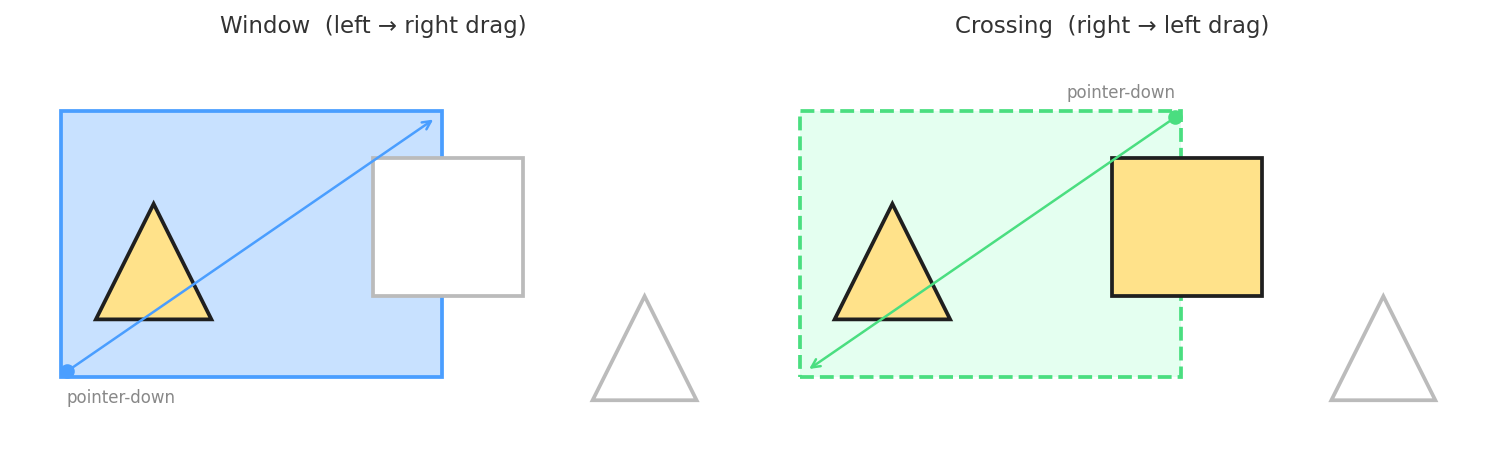
                CAD tools traditionally distinguish two rectangle-drag selection modes:
                <b>window</b> selection picks only the geometry that is <b>fully enclosed</b> by the rectangle,
                while <b>crossing</b> selection picks anything the rectangle <b>fully encloses or merely intersects</b>.
                AutoCAD, Rhino, and most parametric modelers use the drag direction itself as the toggle:
                left-to-right means window, right-to-left means crossing.
            </li>
            <li>
                The mode is inferred from a single comparison
                between the pointer's <code>down</code> position and its current position:

<pre><code class="typescript">
    protected get isCrossingSelect(): boolean {
        if (!this.rect) return false;
        return this.rect.currentX < this.rect.clientX;
    }
</code></pre>

                If the cursor's current x is to the <b>left</b> of where the drag started,
                the user is dragging right-to-left, so the mode is crossing.
            </li>
        </ul>
    <figure>
        <img alt="Window/Crossing Selection" src="/img/window-crossing-selection/window-crossing-selection-0.png" width="100%" onerror=handle_image_error(this)>
    </figure>
    <br>
    <li>
        Drawing the Rubber-Band Rect
    </li>
        <ul>
            <li>
                The rectangle is a plain absolutely-positioned <code>div</code> appended to the main window
                on <code>pointerdown</code> and removed on <code>pointerup</code>.
                The visual style flips on every <code>pointermove</code> based on the drag direction —
                window mode draws a <b>solid blue</b> border with a translucent blue fill,
                while crossing mode switches to a <b>dashed green</b> border with a lighter fill,
                giving the user the same visual cue they would see in AutoCAD:

<pre><code class="typescript">
    protected updateRect(rect: SelectionRect, event: PointerEvent) {
        if (this.pointerEventMap.size !== 1) return;
        rect.currentX = event.clientX;
        rect.element.style.display = "block";
        const [x1, y1] = [Math.min(rect.clientX, event.clientX), Math.min(rect.clientY, event.clientY)];
        const [x2, y2] = [Math.max(rect.clientX, event.clientX), Math.max(rect.clientY, event.clientY)];
        const crossing = event.clientX < rect.clientX;
        Object.assign(rect.element.style, {
            left: `${x1}px`,
            top: `${y1}px`,
            width: `${x2 - x1}px`,
            height: `${y2 - y1}px`,
            borderStyle: crossing ? "dashed" : "solid",
            backgroundColor: crossing ? "rgba(74, 255, 158, 0.15)" : "rgba(74, 158, 255, 0.3)",
            borderColor: crossing ? "var(--success-color, #4ade80)" : "var(--primary-color)",
        });
    }
</code></pre>
            </li>
            <li>
                The handler also requires a <b>3-pixel deadzone</b> before treating the gesture as a rectangle drag.
                Below that threshold the pointer is still treated as a single click,
                so a sloppy mouse-down doesn't accidentally open a tiny selection box.
            </li>
        </ul>
    <br>
    <li>
        Two Hit Tests, One Rectangle
    </li>
        <ul>
            <li>
                Once the user releases the mouse,
                each candidate object is projected onto screen space —
                every vertex of the geometry is run through <code>worldToScreen</code>,
                producing a 2D point cloud and an edge list.
                The mode then selects between two completely different tests.
            </li>
            <br>
            <li>
                <b>Window</b> — every projected vertex must lie inside the rectangle:

<pre><code class="typescript">
    private allPointsInsideRect(pts, minX, minY, maxX, maxY): boolean {
        for (const p of pts) {
            if (p.x < minX || p.x > maxX || p.y < minY || p.y > maxY) return false;
        }
        return pts.length > 0;
    }
</code></pre>

                A single vertex outside the box disqualifies the whole object.
                This is fast (early-exit on first miss) and matches the user's mental model:
                if any visible bit of the part pokes out of the rectangle, it isn't selected.
            </li>
            <br>
            <li>
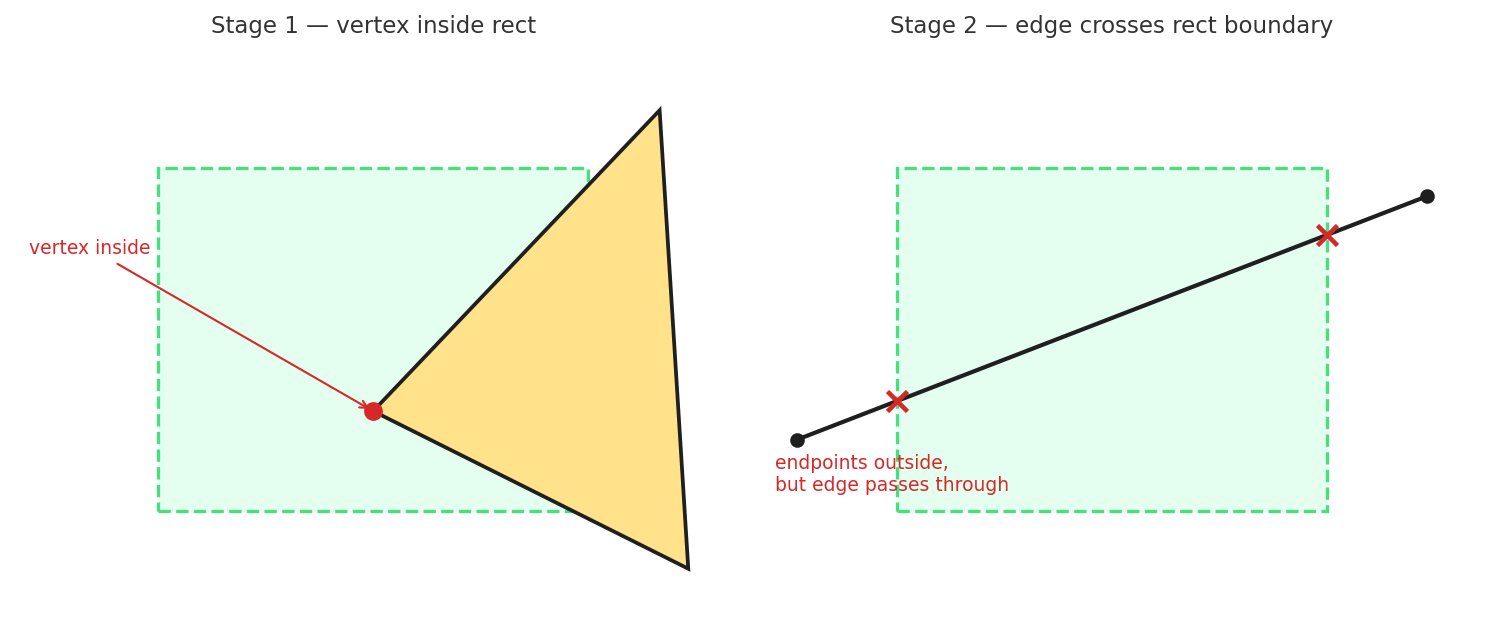
                <b>Crossing</b> — selected if <i>any</i> part of the geometry overlaps the rectangle.
                The check has two stages:
                first, any vertex inside the rectangle is an immediate hit;
                second, every geometry edge is tested against each of the four rectangle edges
                using a 2D segment-intersection routine:

<pre><code class="typescript">
    private anyCrossingHit(pts, edges, minX, minY, maxX, maxY): boolean {
        // 1) any vertex inside rect
        for (const p of pts) {
            if (p.x >= minX && p.x <= maxX && p.y >= minY && p.y <= maxY) return true;
        }
        // 2) any geometry edge crosses rect boundary
        const rectEdges = [
            [minX, minY, maxX, minY],
            [maxX, minY, maxX, maxY],
            [maxX, maxY, minX, maxY],
            [minX, maxY, minX, minY],
        ];
        for (const [ai, bi] of edges) {
            const pa = pts[ai], pb = pts[bi];
            for (const [ex1, ey1, ex2, ey2] of rectEdges) {
                if (segmentsIntersect(pa.x, pa.y, pb.x, pb.y, ex1, ey1, ex2, ey2)) return true;
            }
        }
        return false;
    }
</code></pre>
            </li>
            <br>
            <li>
                The two stages cover the two ways an edge can intersect a rectangle:
                an endpoint inside (caught by stage 1)
                or an edge that passes <b>through</b> the rectangle without either endpoint being inside
                (caught by stage 2).
                Without stage 2, a long line crossing the box from edge to edge would be missed.
            </li>
        </ul>
    <figure>
        <img alt="Window/Crossing Selection" src="/img/window-crossing-selection/window-crossing-selection-1.png" width="100%" onerror=handle_image_error(this)>
    </figure>
    <br>
    <li>
        2D Segment Intersection
    </li>
        <ul>
            <li>
                The crossing test reduces to the standard parametric line-segment intersection.
                Given segments \(P_1P_2\) and \(P_3P_4\), express each as a parametric form
                and solve for the parameters \(t, u\):

                <div class="latex-container">
                    \[
                    t = \frac{(x_3 - x_1)(y_4 - y_3) - (y_3 - y_1)(x_4 - x_3)}{(x_2 - x_1)(y_4 - y_3) - (y_2 - y_1)(x_4 - x_3)}
                    \]
                </div>
                <div class="latex-container">
                    \[
                    u = \frac{(x_3 - x_1)(y_2 - y_1) - (y_3 - y_1)(x_2 - x_1)}{(x_2 - x_1)(y_4 - y_3) - (y_2 - y_1)(x_4 - x_3)}
                    \]
                </div>

                <br>

                The segments intersect if and only if \(0 \le t \le 1\) and \(0 \le u \le 1\).
                The denominator is the 2D cross product of the two direction vectors —
                if it's near zero, the segments are parallel and skipped:

<pre><code class="typescript">
    function segmentsIntersect(x1, y1, x2, y2, x3, y3, x4, y4): boolean {
        const dx1 = x2 - x1, dy1 = y2 - y1;
        const dx2 = x4 - x3, dy2 = y4 - y3;
        const denom = dx1 * dy2 - dy1 * dx2;
        if (Math.abs(denom) < 1e-10) return false;
        const t = ((x3 - x1) * dy2 - (y3 - y1) * dx2) / denom;
        const u = ((x3 - x1) * dy1 - (y3 - y1) * dx1) / denom;
        return t >= 0 && t <= 1 && u >= 0 && u <= 1;
    }
</code></pre>
            </li>
        </ul>
    <br>
    <li>
        World-to-Screen Projection
    </li>
        <ul>
            <li>
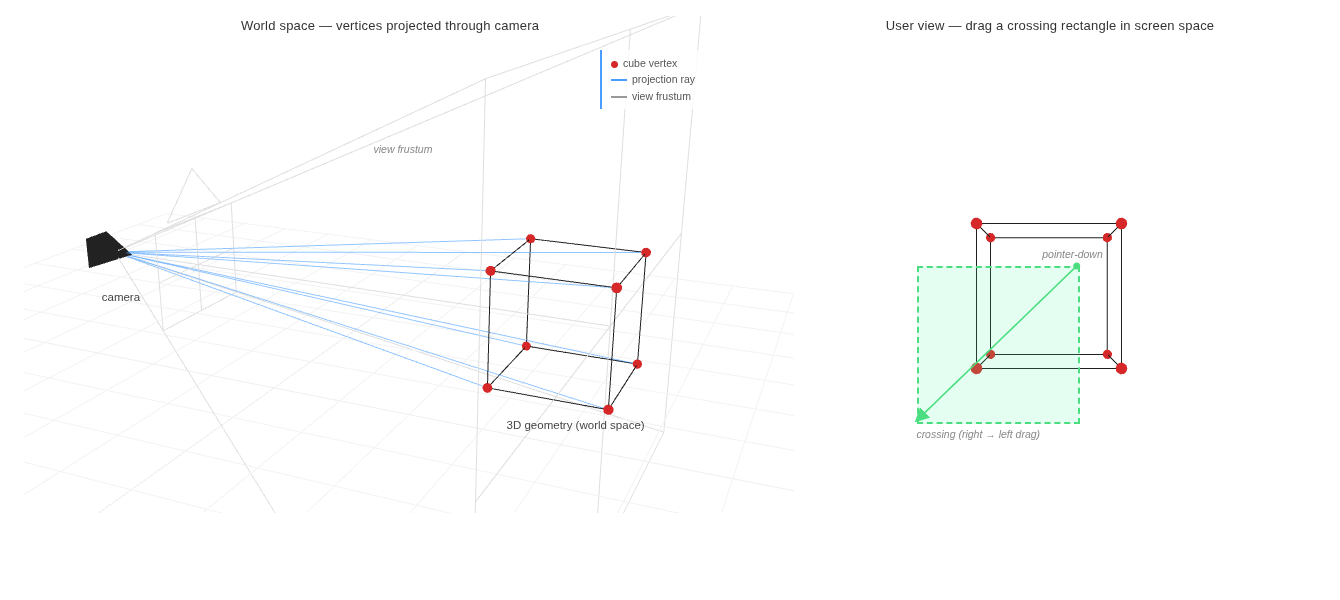
                The hit test runs in pixel coordinates, so the real question is:
                given a 3D vertex on a CAD object,
                what 2D pixel does it land on?
                <code>worldToScreen</code> collapses the standard graphics pipeline —
                view transform, projection, perspective divide, viewport remap —
                into a single helper:

<pre><code class="typescript">
    worldToScreen(point: XYZ): XY {
        const cx = this.width / 2;
        const cy = this.height / 2;
        const vec = new Vector3(point.x, point.y, point.z).project(this.camera);
        return new XY({ x: Math.round(cx * vec.x + cx), y: Math.round(-cy * vec.y + cy) });
    }
</code></pre>
            </li>
            <br>
            <li>
                Three.js's <code>Vector3.project(camera)</code> applies the camera's
                view matrix \(M_{\text{view}}\) and projection matrix \(M_{\text{proj}}\),
                then performs the perspective divide.
                The result is in <b>normalized device coordinates</b> (NDC) —
                a unit cube where each axis lies in \([-1,\, 1]\):

                <div class="latex-container">
                    \[
                        \mathbf{p}_{\text{clip}} = M_{\text{proj}}\, M_{\text{view}}\, \mathbf{p}_{\text{world}}, \quad
                        \mathbf{p}_{\text{NDC}} = \frac{\mathbf{p}_{\text{clip}}}{w_{\text{clip}}}
                    \]
                </div>

                <br>

                Mapping NDC to pixels is a straight affine remap.
                Note the y-axis flip — NDC y points up, but screen y points down:

                <div class="latex-container">
                    \[
                        x_s = \tfrac{w}{2}\,(x_{\text{NDC}} + 1), \qquad
                        y_s = \tfrac{h}{2}\,(1 - y_{\text{NDC}})
                    \]
                </div>
            </li>
            <br>
            <li>
                Vertices on a three.js <code>Object3D</code> start in <b>local</b> space —
                each object has its own coordinate frame.
                <code>localToWorld</code> applies the object's <code>matrixWorld</code>,
                bringing local vertices into the shared world frame
                that <code>worldToScreen</code> expects:

<pre><code class="typescript">
    private projectGeometry(obj: Object3D) {
        // ...
        const v = new Vector3();
        const pts: { x: number; y: number }[] = [];
        for (let i = 0; i < posAttr.count; i++) {
            v.fromBufferAttribute(posAttr, i);                // local-space vertex
            obj.localToWorld(v);                              // local → world
            pts.push(this.worldToScreen({ x: v.x, y: v.y, z: v.z }));
        }
        // ...
    }
</code></pre>

                <br>

                The full chain for a single vertex is therefore:

                <div class="latex-container">
                    \[
                        \mathbf{p}_{\text{local}}
                        \;\xrightarrow{M_{\text{world}}}\; \mathbf{p}_{\text{world}}
                        \;\xrightarrow{M_{\text{view}}}\; \mathbf{p}_{\text{view}}
                        \;\xrightarrow{M_{\text{proj}}}\; \mathbf{p}_{\text{clip}}
                        \;\xrightarrow{\div\, w}\; \mathbf{p}_{\text{NDC}}
                        \;\xrightarrow{\text{viewport}}\; \mathbf{p}_{\text{screen}}
                    \]
                </div>
            </li>
            <br>
            <li>
                One subtlety: this projection is a <b>silhouette</b> test, not a visibility test.
                A vertex behind another object still projects to wherever the camera <i>would</i> see it
                if nothing occluded it,
                so window / crossing selection picks parts by their on-screen outline —
                not by which pixels the user can actually see.
                That matches AutoCAD and Rhino: a part hidden behind a wall is still selectable
                as long as its outline lands inside the rectangle.
            </li>
            <br>
            <li>
                For ordinary three.js meshes and lines the projection
                loops over the <code>position</code> buffer attribute,
                with the edge list reconstructed from the geometry type
                (<code>LineSegments</code> pairs vertices, <code>Line</code> chains them,
                <code>Mesh</code> uses the index buffer to build triangle edges).
            </li>
            <br>
            <li>
                Fat lines (<code>LineSegments2</code>) are special-cased:
                their geometry doesn't store a <code>position</code> attribute at all.
                Instead each segment's start and end are stored separately
                in <code>instanceStart</code> and <code>instanceEnd</code> instanced attributes,
                so the projection has to read both attributes side-by-side and emit them as alternating points.
                Without this branch, fat-line edges silently never appear in any rectangle selection.
            </li>
        </ul>
    <figure>
        <img alt="Window/Crossing Selection" src="/img/window-crossing-selection/window-crossing-selection-2.png" width="100%" onerror=handle_image_error(this)>
    </figure>
    <li>
        Shape-Level vs Visual-Level
    </li>
        <ul>
            <li>
                The visual-level path above (<code>detectVisualRect</code>) is what runs for
                whole-object picks like "select these parts."
                For sub-shape picks — selecting individual edges or faces of a B-Rep —
                the code delegates to three.js's built-in
                <a href="https://threejs.org/docs/#examples/en/interactive/SelectionBox">SelectionBox</a>,
                which performs a true 3D frustum test against the scene:

<pre><code class="typescript">
    detectShapesRect(shapeType, mx1, my1, mx2, my2, ...) {
        // Shape-level rect selection uses SelectionBox for both modes
        // (crossing/window distinction is handled at visual level)
        const selectionBox = this.initSelectionBox(mx1, my1, mx2, my2);
        const detecteds: VisualShapeData[] = [];
        for (const obj of selectionBox.select()) {
            this.addDetectedShape(detecteds, ..., shapeType, obj, ...);
        }
        return detecteds;
    }
</code></pre>
            </li>
            <br>
            <li>
                <code>SelectionBox</code> builds a frustum from the camera and the two NDC corners
                of the drag rectangle, then walks the scene graph and keeps any object whose
                bounding volume falls inside.
                It doesn't itself distinguish window from crossing —
                that distinction is handled one layer up,
                where the screen-space projection has finer control over each vertex.
            </li>
        </ul>
    <br>
</ul>

<br><br>]]></content><author><name>pch</name></author><category term="note" /><summary type="html"><![CDATA[Two Drag Modes CAD tools traditionally distinguish two rectangle-drag selection modes: window selection picks only the geometry that is fully enclosed by the rectangle, while crossing selection picks anything the rectangle fully encloses or merely intersects. AutoCAD, Rhino, and most parametric modelers use the drag direction itself as the toggle: left-to-right means window, right-to-left means crossing. The mode is inferred from a single comparison between the pointer's down position and its current position: protected get isCrossingSelect(): boolean { if (!this.rect) return false; return this.rect.currentX If the cursor's current x is to the left of where the drag started, the user is dragging right-to-left, so the mode is crossing. Drawing the Rubber-Band Rect The rectangle is a plain absolutely-positioned div appended to the main window on pointerdown and removed on pointerup. The visual style flips on every pointermove based on the drag direction — window mode draws a solid blue border with a translucent blue fill, while crossing mode switches to a dashed green border with a lighter fill, giving the user the same visual cue they would see in AutoCAD: protected updateRect(rect: SelectionRect, event: PointerEvent) { if (this.pointerEventMap.size !== 1) return; rect.currentX = event.clientX; rect.element.style.display = "block"; const [x1, y1] = [Math.min(rect.clientX, event.clientX), Math.min(rect.clientY, event.clientY)]; const [x2, y2] = [Math.max(rect.clientX, event.clientX), Math.max(rect.clientY, event.clientY)]; const crossing = event.clientX The handler also requires a 3-pixel deadzone before treating the gesture as a rectangle drag. Below that threshold the pointer is still treated as a single click, so a sloppy mouse-down doesn't accidentally open a tiny selection box. Two Hit Tests, One Rectangle Once the user releases the mouse, each candidate object is projected onto screen space — every vertex of the geometry is run through worldToScreen, producing a 2D point cloud and an edge list. The mode then selects between two completely different tests. Window — every projected vertex must lie inside the rectangle: private allPointsInsideRect(pts, minX, minY, maxX, maxY): boolean { for (const p of pts) { if (p.x maxX || p.y maxY) return false; } return pts.length > 0; } A single vertex outside the box disqualifies the whole object. This is fast (early-exit on first miss) and matches the user's mental model: if any visible bit of the part pokes out of the rectangle, it isn't selected. Crossing — selected if any part of the geometry overlaps the rectangle. The check has two stages: first, any vertex inside the rectangle is an immediate hit; second, every geometry edge is tested against each of the four rectangle edges using a 2D segment-intersection routine: private anyCrossingHit(pts, edges, minX, minY, maxX, maxY): boolean { // 1) any vertex inside rect for (const p of pts) { if (p.x >= minX && p.x = minY && p.y The two stages cover the two ways an edge can intersect a rectangle: an endpoint inside (caught by stage 1) or an edge that passes through the rectangle without either endpoint being inside (caught by stage 2). Without stage 2, a long line crossing the box from edge to edge would be missed. 2D Segment Intersection The crossing test reduces to the standard parametric line-segment intersection. Given segments \(P_1P_2\) and \(P_3P_4\), express each as a parametric form and solve for the parameters \(t, u\): \[ t = \frac{(x_3 - x_1)(y_4 - y_3) - (y_3 - y_1)(x_4 - x_3)}{(x_2 - x_1)(y_4 - y_3) - (y_2 - y_1)(x_4 - x_3)} \] \[ u = \frac{(x_3 - x_1)(y_2 - y_1) - (y_3 - y_1)(x_2 - x_1)}{(x_2 - x_1)(y_4 - y_3) - (y_2 - y_1)(x_4 - x_3)} \] The segments intersect if and only if \(0 \le t \le 1\) and \(0 \le u \le 1\). The denominator is the 2D cross product of the two direction vectors — if it's near zero, the segments are parallel and skipped: function segmentsIntersect(x1, y1, x2, y2, x3, y3, x4, y4): boolean { const dx1 = x2 - x1, dy1 = y2 - y1; const dx2 = x4 - x3, dy2 = y4 - y3; const denom = dx1 * dy2 - dy1 * dx2; if (Math.abs(denom) = 0 && t = 0 && u World-to-Screen Projection The hit test runs in pixel coordinates, so the real question is: given a 3D vertex on a CAD object, what 2D pixel does it land on? worldToScreen collapses the standard graphics pipeline — view transform, projection, perspective divide, viewport remap — into a single helper: worldToScreen(point: XYZ): XY { const cx = this.width / 2; const cy = this.height / 2; const vec = new Vector3(point.x, point.y, point.z).project(this.camera); return new XY({ x: Math.round(cx * vec.x + cx), y: Math.round(-cy * vec.y + cy) }); } Three.js's Vector3.project(camera) applies the camera's view matrix \(M_{\text{view}}\) and projection matrix \(M_{\text{proj}}\), then performs the perspective divide. The result is in normalized device coordinates (NDC) — a unit cube where each axis lies in \([-1,\, 1]\): \[ \mathbf{p}_{\text{clip}} = M_{\text{proj}}\, M_{\text{view}}\, \mathbf{p}_{\text{world}}, \quad \mathbf{p}_{\text{NDC}} = \frac{\mathbf{p}_{\text{clip}}}{w_{\text{clip}}} \] Mapping NDC to pixels is a straight affine remap. Note the y-axis flip — NDC y points up, but screen y points down: \[ x_s = \tfrac{w}{2}\,(x_{\text{NDC}} + 1), \qquad y_s = \tfrac{h}{2}\,(1 - y_{\text{NDC}}) \] Vertices on a three.js Object3D start in local space — each object has its own coordinate frame. localToWorld applies the object's matrixWorld, bringing local vertices into the shared world frame that worldToScreen expects: private projectGeometry(obj: Object3D) { // ... const v = new Vector3(); const pts: { x: number; y: number }[] = []; for (let i = 0; i The full chain for a single vertex is therefore: \[ \mathbf{p}_{\text{local}} \;\xrightarrow{M_{\text{world}}}\; \mathbf{p}_{\text{world}} \;\xrightarrow{M_{\text{view}}}\; \mathbf{p}_{\text{view}} \;\xrightarrow{M_{\text{proj}}}\; \mathbf{p}_{\text{clip}} \;\xrightarrow{\div\, w}\; \mathbf{p}_{\text{NDC}} \;\xrightarrow{\text{viewport}}\; \mathbf{p}_{\text{screen}} \] One subtlety: this projection is a silhouette test, not a visibility test. A vertex behind another object still projects to wherever the camera would see it if nothing occluded it, so window / crossing selection picks parts by their on-screen outline — not by which pixels the user can actually see. That matches AutoCAD and Rhino: a part hidden behind a wall is still selectable as long as its outline lands inside the rectangle. For ordinary three.js meshes and lines the projection loops over the position buffer attribute, with the edge list reconstructed from the geometry type (LineSegments pairs vertices, Line chains them, Mesh uses the index buffer to build triangle edges). Fat lines (LineSegments2) are special-cased: their geometry doesn't store a position attribute at all. Instead each segment's start and end are stored separately in instanceStart and instanceEnd instanced attributes, so the projection has to read both attributes side-by-side and emit them as alternating points. Without this branch, fat-line edges silently never appear in any rectangle selection. Shape-Level vs Visual-Level The visual-level path above (detectVisualRect) is what runs for whole-object picks like "select these parts." For sub-shape picks — selecting individual edges or faces of a B-Rep — the code delegates to three.js's built-in SelectionBox, which performs a true 3D frustum test against the scene: detectShapesRect(shapeType, mx1, my1, mx2, my2, ...) { // Shape-level rect selection uses SelectionBox for both modes // (crossing/window distinction is handled at visual level) const selectionBox = this.initSelectionBox(mx1, my1, mx2, my2); const detecteds: VisualShapeData[] = []; for (const obj of selectionBox.select()) { this.addDetectedShape(detecteds, ..., shapeType, obj, ...); } return detecteds; } SelectionBox builds a frustum from the camera and the two NDC corners of the drag rectangle, then walks the scene graph and keeps any object whose bounding volume falls inside. It doesn't itself distinguish window from crossing — that distinction is handled one layer up, where the screen-space projection has finer control over each vertex.]]></summary></entry><entry><title type="html">IndexedDB</title><link href="https://parkcheolhee-lab.github.io/indexed-db/" rel="alternate" type="text/html" title="IndexedDB" /><published>2026-03-26T00:00:00+00:00</published><updated>2026-03-26T00:00:00+00:00</updated><id>https://parkcheolhee-lab.github.io/indexed-db</id><content type="html" xml:base="https://parkcheolhee-lab.github.io/indexed-db/"><![CDATA[<br>

<ul>
    <li>
        What is IndexedDB
    </li>
        <ul>
            <li>
                A <b>client-side NoSQL database</b> built into the browser
            </li>
            <li>
                Unlike <code>localStorage</code>, it can store large amounts of <b>structured data</b> (objects, files, Blobs, etc.)
            </li>
            <li>
                <mark>Stores data in key-value format and supports fast lookups via indexes</mark>
            </li>
            <li>
                A Web API standard — available in all modern browsers without any installation
            </li>
        </ul>
    <br>
    <li>
        Differences from localStorage / sessionStorage
    </li>
        <ul>
            <li>
                <code>localStorage</code>: stores strings only, ~5-10MB max, synchronous API
            </li>
            <li>
                <code>sessionStorage</code>: similar to localStorage but scoped per tab — data is deleted when the tab/window closes
            </li>
            <li>
                <code>IndexedDB</code>: can store objects, <b>hundreds of MB or more</b>, <b>asynchronous</b> API
            </li>
            <li>
                IndexedDB operates on a transaction-based model, ensuring data integrity
            </li>
        </ul>
    <br>
    <li>
        Where the data is stored
    </li>
        <ul>
            <li>
                Data is stored on the <b>user's local disk</b>, managed internally by the browser engine
            </li>
            <li>
                Under the hood, most browsers use <b>LevelDB</b> (Chrome) or <b>SQLite</b> (Firefox, Safari) as the backing storage engine —
                but this is an implementation detail, not exposed to the API
            </li>
            <li>
                Storage paths by browser:
                <ul>
                    <li>Chrome (Linux): <code>~/.config/google-chrome/Default/IndexedDB/</code></li>
                    <li>Chrome (macOS): <code>~/Library/Application Support/Google/Chrome/Default/IndexedDB/</code></li>
                    <li>Chrome (Windows): <code>%LOCALAPPDATA%\Google\Chrome\User Data\Default\IndexedDB\</code></li>
                    <li>Firefox: <code>~/.mozilla/firefox/&lt;profile&gt;/storage/default/</code></li>
                    <li>Safari: <code>~/Library/Containers/com.apple.Safari/Data/Library/WebKit/WebsiteData/Default/</code></li>
                </ul>
            </li>
            <li>
                Inside these directories, data is organized by origin — e.g. <code>https_example.com_0.indexeddb.leveldb/</code>
            </li>
            <li>
                Isolated per <b>origin (protocol + domain + port)</b> — cannot access data from other origins (Same-Origin Policy)
            </li>
            <li>
                The files on disk are <b>not human-readable</b> — they are binary database files managed by LevelDB/SQLite, not plain JSON or text
            </li>
            <li>
                Storage quota:
                <ul>
                    <li>Chrome: up to <b>60% of total disk space</b> per origin (within an overall browser limit of 80% of disk)</li>
                    <li>Firefox: up to <b>10% of total disk space</b> per origin (or 10 GiB group limit, whichever is smaller)</li>
                    <li>Safari (17.0+): up to <b>60% of total disk space</b> per origin (overall 80% of disk, same as Chrome)</li>
                </ul>
            </li>
            <li>
                Check available storage programmatically:
<pre><code>
    const estimate = await navigator.storage.estimate();
    console.log(`Used: ${estimate.usage} bytes`);
    console.log(`Quota: ${estimate.quota} bytes`);
</code></pre>
            </li>
            <li>
                Data persistence:
                <ul>
                    <li>By default, the browser may evict IndexedDB data under <b>storage pressure</b> (low disk space) — this is called <b>"best-effort"</b> persistence</li>
                    <li>Request <b>persistent storage</b> to prevent eviction: <code>await navigator.storage.persist()</code></li>
                    <li>Deleted when the user clears browser data, or at session end in incognito/private mode</li>
                </ul>
            </li>
        </ul>
    <br>
    <li>
        Core concepts
    </li>
        <ul>
            <li>
                <b>Database</b>: the top-level container, identified by name and version
            </li>
            <li>
                <b>Object Store</b>: equivalent to a table in RDBMS — the actual storage space for data
            </li>
            <li>
                <b>Key</b>: a value that uniquely identifies each record, configured via <code>keyPath</code> or <code>autoIncrement</code>
            </li>
            <li>
                <b>Index</b>: a secondary key for fast lookups on a specific property
            </li>
            <li>
                <b>Transaction</b>: all read/write operations run inside a transaction — three modes: <code>readonly</code>, <code>readwrite</code>, <code>versionchange</code>
            </li>
            <li>
                <b>Cursor</b>: a mechanism for iterating over records in an Object Store
            </li>
        </ul>
    <br>
    <li>
        How it works (basic flow)
    </li>
        <ol>
            <li>
                Open a database — <code>indexedDB.open(name, version)</code>
<pre><code>
    const request = indexedDB.open("MyDatabase", 1);
</code></pre>
            </li>
            <li>
                Set up the schema — create Object Stores and Indexes in the <code>onupgradeneeded</code> event
<pre><code>
    request.onupgradeneeded = (event) => {
        const db = event.target.result;
        const store = db.createObjectStore("users", { keyPath: "id" });
        store.createIndex("name", "name", { unique: false });
    };
</code></pre>
            </li>
            <li>
                Write data — open a transaction and add data to the Object Store
<pre><code>
    request.onsuccess = (event) => {
        const db = event.target.result;
        const tx = db.transaction("users", "readwrite");
        const store = tx.objectStore("users");
        store.add({ id: 1, name: "Park", age: 30 });
    };
</code></pre>
            </li>
            <li>
                Read data — query by key or index
<pre><code>
    const tx = db.transaction("users", "readonly");
    const store = tx.objectStore("users");
    const getRequest = store.get(1);
    getRequest.onsuccess = () => {
        console.log(getRequest.result); // { id: 1, name: "Park", age: 30 }
    };
</code></pre>
            </li>
        </ol>
    <br>
    <li>
        Async patterns
    </li>
        <ul>
            <li>
                The IndexedDB API is <b>event-driven</b> — every request requires <code>onsuccess</code> and <code>onerror</code> callbacks
            </li>
            <li>
                Wrapping with Promises enables the <code>async/await</code> pattern
            </li>
            <li>
                <a href="https://github.com/jakearchibald/idb">idb</a> library: a lightweight wrapper that provides a Promise-based API for IndexedDB
<pre><code>
    import { openDB } from "idb";

    const db = await openDB("MyDatabase", 1, {
        upgrade(db) {
            db.createObjectStore("users", { keyPath: "id" });
        },
    });

    await db.add("users", { id: 1, name: "Park", age: 30 });
    const user = await db.get("users", 1);
</code></pre>
            </li>
        </ul>
    <br>
    <li>
        Use cases
    </li>
        <ul>
            <li>
                <b>Offline web apps</b>: caching data offline alongside Service Workers
            </li>
            <li>
                <b>Large client-side data</b>: storing images, files, large JSON payloads in the browser
            </li>
            <li>
                <b>Client-side search</b>: fast local search using indexes
            </li>
            <li>
                <b>Persistent state</b>: preserving app state across refreshes and reconnections
            </li>
        </ul>
    <br>
    <li>
        Things to watch out for
    </li>
        <ul>
            <li>
                <b>No synchronous API</b> — all operations are async, requiring callbacks or Promises
            </li>
            <li>
                <b>Schema migration</b> — <code>onupgradeneeded</code> fires on initial database creation or when the version number is incremented.
                Be careful with version management when modifying existing Object Stores
            </li>
            <li>
                <b>Storage Quota</b> — storage limits vary by browser.
                Use <code>navigator.storage.estimate()</code> to check available capacity
            </li>
            <li>
                <b>Debugging</b> — inspect and edit data in Chrome DevTools > Application > IndexedDB
            </li>
        </ul>
</ul>

<br><br>]]></content><author><name>pch</name></author><category term="note" /><summary type="html"><![CDATA[What is IndexedDB A client-side NoSQL database built into the browser Unlike localStorage, it can store large amounts of structured data (objects, files, Blobs, etc.) Stores data in key-value format and supports fast lookups via indexes A Web API standard — available in all modern browsers without any installation Differences from localStorage / sessionStorage localStorage: stores strings only, ~5-10MB max, synchronous API sessionStorage: similar to localStorage but scoped per tab — data is deleted when the tab/window closes IndexedDB: can store objects, hundreds of MB or more, asynchronous API IndexedDB operates on a transaction-based model, ensuring data integrity Where the data is stored Data is stored on the user's local disk, managed internally by the browser engine Under the hood, most browsers use LevelDB (Chrome) or SQLite (Firefox, Safari) as the backing storage engine — but this is an implementation detail, not exposed to the API Storage paths by browser: Chrome (Linux): ~/.config/google-chrome/Default/IndexedDB/ Chrome (macOS): ~/Library/Application Support/Google/Chrome/Default/IndexedDB/ Chrome (Windows): %LOCALAPPDATA%\Google\Chrome\User Data\Default\IndexedDB\ Firefox: ~/.mozilla/firefox/&lt;profile&gt;/storage/default/ Safari: ~/Library/Containers/com.apple.Safari/Data/Library/WebKit/WebsiteData/Default/ Inside these directories, data is organized by origin — e.g. https_example.com_0.indexeddb.leveldb/ Isolated per origin (protocol + domain + port) — cannot access data from other origins (Same-Origin Policy) The files on disk are not human-readable — they are binary database files managed by LevelDB/SQLite, not plain JSON or text Storage quota: Chrome: up to 60% of total disk space per origin (within an overall browser limit of 80% of disk) Firefox: up to 10% of total disk space per origin (or 10 GiB group limit, whichever is smaller) Safari (17.0+): up to 60% of total disk space per origin (overall 80% of disk, same as Chrome) Check available storage programmatically: const estimate = await navigator.storage.estimate(); console.log(`Used: ${estimate.usage} bytes`); console.log(`Quota: ${estimate.quota} bytes`); Data persistence: By default, the browser may evict IndexedDB data under storage pressure (low disk space) — this is called "best-effort" persistence Request persistent storage to prevent eviction: await navigator.storage.persist() Deleted when the user clears browser data, or at session end in incognito/private mode Core concepts Database: the top-level container, identified by name and version Object Store: equivalent to a table in RDBMS — the actual storage space for data Key: a value that uniquely identifies each record, configured via keyPath or autoIncrement Index: a secondary key for fast lookups on a specific property Transaction: all read/write operations run inside a transaction — three modes: readonly, readwrite, versionchange Cursor: a mechanism for iterating over records in an Object Store How it works (basic flow) Open a database — indexedDB.open(name, version) const request = indexedDB.open("MyDatabase", 1); Set up the schema — create Object Stores and Indexes in the onupgradeneeded event request.onupgradeneeded = (event) => { const db = event.target.result; const store = db.createObjectStore("users", { keyPath: "id" }); store.createIndex("name", "name", { unique: false }); }; Write data — open a transaction and add data to the Object Store request.onsuccess = (event) => { const db = event.target.result; const tx = db.transaction("users", "readwrite"); const store = tx.objectStore("users"); store.add({ id: 1, name: "Park", age: 30 }); }; Read data — query by key or index const tx = db.transaction("users", "readonly"); const store = tx.objectStore("users"); const getRequest = store.get(1); getRequest.onsuccess = () => { console.log(getRequest.result); // { id: 1, name: "Park", age: 30 } }; Async patterns The IndexedDB API is event-driven — every request requires onsuccess and onerror callbacks Wrapping with Promises enables the async/await pattern idb library: a lightweight wrapper that provides a Promise-based API for IndexedDB import { openDB } from "idb"; const db = await openDB("MyDatabase", 1, { upgrade(db) { db.createObjectStore("users", { keyPath: "id" }); }, }); await db.add("users", { id: 1, name: "Park", age: 30 }); const user = await db.get("users", 1); Use cases Offline web apps: caching data offline alongside Service Workers Large client-side data: storing images, files, large JSON payloads in the browser Client-side search: fast local search using indexes Persistent state: preserving app state across refreshes and reconnections Things to watch out for No synchronous API — all operations are async, requiring callbacks or Promises Schema migration — onupgradeneeded fires on initial database creation or when the version number is incremented. Be careful with version management when modifying existing Object Stores Storage Quota — storage limits vary by browser. Use navigator.storage.estimate() to check available capacity Debugging — inspect and edit data in Chrome DevTools > Application > IndexedDB]]></summary></entry><entry><title type="html">Regression Model</title><link href="https://parkcheolhee-lab.github.io/regression-model/" rel="alternate" type="text/html" title="Regression Model" /><published>2026-03-15T00:00:00+00:00</published><updated>2026-03-15T00:00:00+00:00</updated><id>https://parkcheolhee-lab.github.io/regression-model</id><content type="html" xml:base="https://parkcheolhee-lab.github.io/regression-model/"><![CDATA[<br>

<ul>
    <li>
        Regression is not fitting a line to data
    </li>
        <ul>
            <li>
                Most people think of regression as: data exists first → find a line that fits the data
            </li>
            <li>
                <mark>But statistically, it's the opposite: a line (mean structure) exists first → data is generated randomly around it</mark>
            </li>
            <li>
                This is the most important perspective shift in understanding regression
            </li>
        </ul>
    <br>
    <li>
        Data Generating Process (DGP)
    </li>
        <ul>
            <li>
                The statistical model starts with:
                \[
                    Y_i = \beta_0 + \beta_1 X_i + \epsilon_i, \quad \epsilon_i \sim N(0, \sigma^2)
                \]
            </li>
            <li>
                This means: there exists a <b>true line</b> in the world, but we can never observe it directly
            </li>
            <li>
                Instead, we observe data that is <b>the line + random noise</b>
            </li>
            <li>
                The generation process:
                <ol>
                    <li>\(X_i\) is chosen</li>
                    <li>Conditional mean is computed: \(\mu_i = \beta_0 + \beta_1 X_i\)</li>
                    <li>\(Y_i\) is sampled from \(N(\mu_i, \sigma^2)\)</li>
                </ol>
            </li>
        </ul>
    <br>
    <li>
        Conditional distribution of \(Y\)
    </li>
        <ul>
            <li>
                At each \(X\), \(Y\) follows a normal distribution:
                \[
                    Y \mid X = x \sim N(\beta_0 + \beta_1 x, \, \sigma^2)
                \]
            </li>
            <li>
                <mark>A scatter plot is not just a collection of points — it's the top-down view of vertical normal distributions at each \(X\)</mark>
            </li>
            <li>
                The vertical spread at each \(X\) is \(\text{Var}(Y \mid X) = \sigma^2\)
            </li>
        </ul>
    <br>
        <div style="display: flex; justify-content: center; align-items: center; margin: 10px 0;">
            <canvas id="regressionCanvas" width="800" height="420"></canvas>
        </div>
        <figcaption>Scatter plot with regression line and conditional \(Y\) distributions at \(X = 2, 5, 8\)</figcaption>
    <br>
    <li>
        What the regression line really is
    </li>
        <ul>
            <li>
                The regression line connects the <b>means of the vertical distributions</b>:
                \[
                    \text{Regression line} = E(Y \mid X) = \beta_0 + \beta_1 X
                \]
            </li>
            <li>
                So regression is not "fitting a line to data" — it's <b>estimating the conditional expectation</b> \(E(Y \mid X)\)
            </li>
            <li>
                Equivalently, the regression line minimizes the expected squared error:
                \[
                    \beta_0 + \beta_1 X = \arg\min_f \, E\left[(Y - f(X))^2\right]
                \]
            </li>
        </ul>
    <br>
    <li>
        Summary
    </li>
        <ul>
            <li>
                The full structure of regression:
                \[
                    \epsilon \sim N(0, \sigma^2)
                \]
                \[
                    Y = \beta_0 + \beta_1 X + \epsilon
                \]
                \[
                    Y \mid X \sim N(\beta_0 + \beta_1 X, \, \sigma^2)
                \]
                \[
                    E(Y \mid X) = \beta_0 + \beta_1 X
                \]
                \[
                    \text{Regression line} = E(Y \mid X)
                \]
            </li>
            <li>
                Once this perspective is understood, confidence intervals, t-tests, ANOVA, and \(R^2\) all follow naturally
            </li>
            <li>
                This generalizes to GLM, Bayesian regression, and Gaussian process regression — all share the same structure
            </li>
        </ul>
</ul>

<br><br>


<script>
document.addEventListener("DOMContentLoaded", function() {
    const canvas = document.getElementById("regressionCanvas");
    const ctx = canvas.getContext("2d");
    const W = canvas.width;
    const H = canvas.height;

    const pad = { top: 30, right: 30, bottom: 50, left: 50 };
    const plotW = W - pad.left - pad.right;
    const plotH = H - pad.top - pad.bottom;

    // seeded random (mulberry32)
    function mulberry32(a) {
        return function() {
            a |= 0; a = a + 0x6D2B79F5 | 0;
            var t = Math.imul(a ^ a >>> 15, 1 | a);
            t = t + Math.imul(t ^ t >>> 7, 61 | t) ^ t;
            return ((t ^ t >>> 14) >>> 0) / 4294967296;
        }
    }
    var rand = mulberry32(42);

    // box-muller
    function randn() {
        var u = 0, v = 0;
        while (u === 0) u = rand();
        while (v === 0) v = rand();
        return Math.sqrt(-2.0 * Math.log(u)) * Math.cos(2.0 * Math.PI * v);
    }

    // data params
    var beta0 = 2, beta1 = 0.7, sigma = 1.5;
    var n = 80;
    var xMin = 0, xMax = 10;

    // generate data
    var dataX = [], dataY = [];
    for (var i = 0; i < n; i++) {
        var x = rand() * (xMax - xMin) + xMin;
        var y = beta0 + beta1 * x + randn() * sigma;
        dataX.push(x);
        dataY.push(y);
    }

    // fit regression (least squares)
    var sumX = 0, sumY = 0, sumXY = 0, sumXX = 0;
    for (var i = 0; i < n; i++) {
        sumX += dataX[i]; sumY += dataY[i];
        sumXY += dataX[i] * dataY[i]; sumXX += dataX[i] * dataX[i];
    }
    var b1 = (n * sumXY - sumX * sumY) / (n * sumXX - sumX * sumX);
    var b0 = (sumY - b1 * sumX) / n;

    // y range
    var yMin = -1, yMax = 12;

    // coordinate transforms
    function toCanvasX(x) { return pad.left + (x - xMin) / (xMax - xMin) * plotW; }
    function toCanvasY(y) { return pad.top + (1 - (y - yMin) / (yMax - yMin)) * plotH; }

    var bodyStyle = getComputedStyle(document.body);
    var textColor = bodyStyle.color || "#000";

    // axes
    ctx.strokeStyle = textColor;
    ctx.lineWidth = 1;
    ctx.beginPath();
    ctx.moveTo(pad.left, pad.top);
    ctx.lineTo(pad.left, pad.top + plotH);
    ctx.lineTo(pad.left + plotW, pad.top + plotH);
    ctx.stroke();

    // axis labels
    ctx.fillStyle = textColor;
    ctx.font = "14px PT Sans";
    ctx.textAlign = "center";
    for (var x = 0; x <= 10; x += 2) {
        var cx = toCanvasX(x);
        ctx.fillText(x, cx, pad.top + plotH + 20);
        ctx.beginPath();
        ctx.moveTo(cx, pad.top + plotH);
        ctx.lineTo(cx, pad.top + plotH + 5);
        ctx.stroke();
    }
    ctx.textAlign = "right";
    for (var y = 0; y <= 10; y += 2) {
        var cy = toCanvasY(y);
        ctx.fillText(y, pad.left - 10, cy + 4);
        ctx.beginPath();
        ctx.moveTo(pad.left - 5, cy);
        ctx.lineTo(pad.left, cy);
        ctx.stroke();
    }

    ctx.textAlign = "center";
    ctx.font = "15px PT Sans";
    ctx.save();
    ctx.translate(15, H / 2);
    ctx.rotate(-Math.PI / 2);
    ctx.restore();

    // scatter points
    ctx.fillStyle = "rgba(70, 130, 180, 0.6)";
    for (var i = 0; i < n; i++) {
        ctx.beginPath();
        ctx.arc(toCanvasX(dataX[i]), toCanvasY(dataY[i]), 3.5, 0, Math.PI * 2);
        ctx.fill();
    }

    // regression line
    ctx.strokeStyle = "rgba(220, 60, 60, 0.85)";
    ctx.lineWidth = 2;
    ctx.beginPath();
    ctx.moveTo(toCanvasX(xMin), toCanvasY(b0 + b1 * xMin));
    ctx.lineTo(toCanvasX(xMax), toCanvasY(b0 + b1 * xMax));
    ctx.stroke();

    // conditional distributions at X = 2, 5, 8
    var distColors = [
        "rgba(255, 140, 0, 0.55)",
        "rgba(60, 180, 75, 0.55)",
        "rgba(160, 80, 220, 0.55)"
    ];
    var xPoints = [2, 5, 8];

    function gaussPdf(y, mu, s) {
        return Math.exp(-0.5 * Math.pow((y - mu) / s, 2)) / (s * Math.sqrt(2 * Math.PI));
    }

    for (var k = 0; k < xPoints.length; k++) {
        var xp = xPoints[k];
        var mu = b0 + b1 * xp;
        var cx = toCanvasX(xp);
        var scale = 120;

        ctx.fillStyle = distColors[k];
        ctx.strokeStyle = distColors[k].replace("0.55", "0.9");
        ctx.lineWidth = 1.5;

        ctx.beginPath();
        ctx.moveTo(cx, toCanvasY(yMin));
        for (var y = yMin; y <= yMax; y += 0.05) {
            var p = gaussPdf(y, mu, sigma);
            ctx.lineTo(cx + p * scale, toCanvasY(y));
        }
        ctx.lineTo(cx, toCanvasY(yMax));
        ctx.closePath();
        ctx.fill();
        ctx.stroke();

        // mean line
        ctx.setLineDash([4, 4]);
        ctx.strokeStyle = distColors[k].replace("0.55", "0.9");
        ctx.beginPath();
        ctx.moveTo(cx, toCanvasY(mu));
        ctx.lineTo(cx + gaussPdf(mu, mu, sigma) * scale, toCanvasY(mu));
        ctx.stroke();
        ctx.setLineDash([]);

        // label
        ctx.fillStyle = textColor;
        ctx.font = "12px PT Sans";
        ctx.textAlign = "center";
        ctx.fillText("X=" + xp, cx, pad.top + plotH + 35);
    }

    // legend (bottom-right with semi-transparent white background)
    ctx.font = "12px PT Sans";
    ctx.textAlign = "left";
    var legendW = 185, legendH = 58, legendPad = 8;
    var lx = pad.left + plotW - legendW - 5;
    var ly = pad.top + plotH - legendH - 5;

    ctx.fillStyle = "rgba(255, 255, 255, 0.5)";
    ctx.fillRect(lx - legendPad, ly - legendPad, legendW + legendPad * 2, legendH + legendPad * 2);

    ctx.fillStyle = "rgba(70, 130, 180, 0.6)";
    ctx.beginPath(); ctx.arc(lx + 5, ly + 5, 3.5, 0, Math.PI * 2); ctx.fill();
    ctx.fillStyle = textColor;
    ctx.fillText("Data points", lx + 15, ly + 9);

    ctx.strokeStyle = "rgba(220, 60, 60, 0.85)";
    ctx.lineWidth = 2;
    ctx.beginPath(); ctx.moveTo(lx, ly + 22); ctx.lineTo(lx + 12, ly + 22); ctx.stroke();
    ctx.fillStyle = textColor;
    ctx.fillText("E(Y | X) = regression line", lx + 15, ly + 26);

    ctx.fillStyle = "rgba(255, 140, 0, 0.35)";
    ctx.fillRect(lx, ly + 33, 12, 12);
    ctx.fillStyle = textColor;
    ctx.fillText("P(Y | X = x) distributions", lx + 15, ly + 43);
});
</script>]]></content><author><name>pch</name></author><category term="note" /><summary type="html"><![CDATA[Regression is not fitting a line to data Most people think of regression as: data exists first → find a line that fits the data But statistically, it's the opposite: a line (mean structure) exists first → data is generated randomly around it This is the most important perspective shift in understanding regression Data Generating Process (DGP) The statistical model starts with: \[ Y_i = \beta_0 + \beta_1 X_i + \epsilon_i, \quad \epsilon_i \sim N(0, \sigma^2) \] This means: there exists a true line in the world, but we can never observe it directly Instead, we observe data that is the line + random noise The generation process: \(X_i\) is chosen Conditional mean is computed: \(\mu_i = \beta_0 + \beta_1 X_i\) \(Y_i\) is sampled from \(N(\mu_i, \sigma^2)\) Conditional distribution of \(Y\) At each \(X\), \(Y\) follows a normal distribution: \[ Y \mid X = x \sim N(\beta_0 + \beta_1 x, \, \sigma^2) \] A scatter plot is not just a collection of points — it's the top-down view of vertical normal distributions at each \(X\) The vertical spread at each \(X\) is \(\text{Var}(Y \mid X) = \sigma^2\) Scatter plot with regression line and conditional \(Y\) distributions at \(X = 2, 5, 8\) What the regression line really is The regression line connects the means of the vertical distributions: \[ \text{Regression line} = E(Y \mid X) = \beta_0 + \beta_1 X \] So regression is not "fitting a line to data" — it's estimating the conditional expectation \(E(Y \mid X)\) Equivalently, the regression line minimizes the expected squared error: \[ \beta_0 + \beta_1 X = \arg\min_f \, E\left[(Y - f(X))^2\right] \] Summary The full structure of regression: \[ \epsilon \sim N(0, \sigma^2) \] \[ Y = \beta_0 + \beta_1 X + \epsilon \] \[ Y \mid X \sim N(\beta_0 + \beta_1 X, \, \sigma^2) \] \[ E(Y \mid X) = \beta_0 + \beta_1 X \] \[ \text{Regression line} = E(Y \mid X) \] Once this perspective is understood, confidence intervals, t-tests, ANOVA, and \(R^2\) all follow naturally This generalizes to GLM, Bayesian regression, and Gaussian process regression — all share the same structure]]></summary></entry><entry><title type="html">WASM</title><link href="https://parkcheolhee-lab.github.io/wasm/" rel="alternate" type="text/html" title="WASM" /><published>2026-03-12T00:00:00+00:00</published><updated>2026-03-12T00:00:00+00:00</updated><id>https://parkcheolhee-lab.github.io/wasm</id><content type="html" xml:base="https://parkcheolhee-lab.github.io/wasm/"><![CDATA[<br>

<ul>
    <li>
        What is WebAssembly (WASM)
    </li>
        <ul>
            <li>
                A <b>binary instruction format</b> that runs near-native-speed code in web browsers
            </li>
            <li>
                <mark>Not a programming language — a compilation target for C, C++, Rust, Go, etc.</mark>
            </li>
            <li>
                Runs in a <b>sandboxed VM</b> alongside JavaScript — W3C standard, all modern browsers
            </li>
            <li>
                Also runs outside browsers — Cloudflare Workers, Node.js, Deno
            </li>
        </ul>
    <br>
    <li>
        Why WASM
    </li>
        <ul>
            <li>
                <b>Performance</b>: near-native speed for compute-heavy tasks
            </li>
            <li>
                <b>Code reuse</b>: bring existing C/C++ libraries to the web without rewriting in JS
            </li>
            <li>
                <b>Portability</b>: compile once, run anywhere that supports WASM
            </li>
        </ul>
    <br>
    <li>
        How it works
    </li>
        <ul>
            <li>
                C/C++ source → compiled to <code>.wasm</code> binary via <a href="https://emscripten.org/">Emscripten</a>
            </li>
            <li>
                Emscripten also generates a <b>JS glue file</b> (<code>.js</code>) that handles loading and binding
            </li>
            <li>
                Browser fetches and instantiates the <code>.wasm</code>, exported functions become callable from JS
            </li>
            <li>
                JS and WASM share a <b>linear memory</b> (ArrayBuffer) — data is copied into/out of this memory
            </li>
        </ul>
    <br>
    <li>
        Emscripten & Embind
    </li>
        <ul>
            <li>
                <a href="https://emscripten.org/">Emscripten</a>: the most widely used C/C++ → WASM compiler toolchain
            </li>
            <li>
                Compile with <code>emcc</code> (C/C++) or <code>em++</code> (forces C++ mode), produces <code>.js</code> (glue) + <code>.wasm</code> (binary)
            </li>
            <li>
                <b>Embind</b>: Emscripten's binding system that maps C++ functions, structs, and types to JavaScript
            </li>
            <li>
                After compilation, JS can call C++ functions as if they were native JS functions
            </li>
        </ul>
    <br>
    <li>
        Memory management
    </li>
        <ul>
            <li>
                Embind objects live on the <b>WASM heap</b>, not managed by JS garbage collector
            </li>
            <li>
                <mark>Must call <code>.delete()</code> on Embind class instances — forgetting causes memory leaks</mark>
            </li>
            <li>
                WASM heap grows dynamically but <b>never shrinks</b>
            </li>
        </ul>
    <br>
    <li>
        Practical example: Instant Meshes as WASM
    </li>
        <ul>
            <li>
                <a href="https://github.com/wjakob/instant-meshes">Instant Meshes</a> — C++ tool for field-aligned quad-dominant remeshing, compiled to WASM (~485 KB)
            </li>
            <li>
                Why WASM over rewriting in TS: research-grade algorithm, complex numerics, hard to validate a from-scratch port
            </li>
            <li>
                Key decisions:
                <ul>
                    <li><b>Single-threaded</b>: TBB replaced with a shim — avoids <code>SharedArrayBuffer</code> / <code>pthreads</code></li>
                    <li><b>No file I/O</b>: stubbed out since WASM has no filesystem</li>
                    <li><b>Pinned versions</b>: Emscripten, source commit, Eigen all pinned for reproducible builds</li>
                </ul>
            </li>
            <br>
            <img alt="WASM" src="/img/wasm/wasm.gif" width="100%" style="clip-path: inset(2px 0)" onerror=handle_image_error(this)>
            <figcaption>Instant Meshes quad remeshing via WASM</figcaption>
            <br>
        </ul>
    <br>
    <li>
        Limitations
    </li>
        <ul>
            <li>
                <b>No DOM access</b> — must call back to JS for browser APIs
            </li>
            <li>
                <b>No threads by default</b> — requires <code>SharedArrayBuffer</code> + COOP/COEP headers
            </li>
            <li>
                <b>No filesystem</b> — file I/O must be stubbed or use Emscripten's virtual FS
            </li>
            <li>
                <b>Debugging</b> — Chrome DevTools supports WASM debugging via DWARF debug info, but limited compared to JS
            </li>
        </ul>
</ul>

<br><br>]]></content><author><name>pch</name></author><category term="note" /><summary type="html"><![CDATA[What is WebAssembly (WASM) A binary instruction format that runs near-native-speed code in web browsers Not a programming language — a compilation target for C, C++, Rust, Go, etc. Runs in a sandboxed VM alongside JavaScript — W3C standard, all modern browsers Also runs outside browsers — Cloudflare Workers, Node.js, Deno Why WASM Performance: near-native speed for compute-heavy tasks Code reuse: bring existing C/C++ libraries to the web without rewriting in JS Portability: compile once, run anywhere that supports WASM How it works C/C++ source → compiled to .wasm binary via Emscripten Emscripten also generates a JS glue file (.js) that handles loading and binding Browser fetches and instantiates the .wasm, exported functions become callable from JS JS and WASM share a linear memory (ArrayBuffer) — data is copied into/out of this memory Emscripten & Embind Emscripten: the most widely used C/C++ → WASM compiler toolchain Compile with emcc (C/C++) or em++ (forces C++ mode), produces .js (glue) + .wasm (binary) Embind: Emscripten's binding system that maps C++ functions, structs, and types to JavaScript After compilation, JS can call C++ functions as if they were native JS functions Memory management Embind objects live on the WASM heap, not managed by JS garbage collector Must call .delete() on Embind class instances — forgetting causes memory leaks WASM heap grows dynamically but never shrinks Practical example: Instant Meshes as WASM Instant Meshes — C++ tool for field-aligned quad-dominant remeshing, compiled to WASM (~485 KB) Why WASM over rewriting in TS: research-grade algorithm, complex numerics, hard to validate a from-scratch port Key decisions: Single-threaded: TBB replaced with a shim — avoids SharedArrayBuffer / pthreads No file I/O: stubbed out since WASM has no filesystem Pinned versions: Emscripten, source commit, Eigen all pinned for reproducible builds Instant Meshes quad remeshing via WASM Limitations No DOM access — must call back to JS for browser APIs No threads by default — requires SharedArrayBuffer + COOP/COEP headers No filesystem — file I/O must be stubbed or use Emscripten's virtual FS Debugging — Chrome DevTools supports WASM debugging via DWARF debug info, but limited compared to JS]]></summary></entry></feed>